 how-to
How to Organize Laser Cut Files for Batch Production
Table of Contents
- Why Batch Production Breaks Without a File System
- Build a Folder Structure That Scales
- Laser Cut File Naming Conventions That Survive a Busy Shop
- Nesting Laser Cut Parts for Efficient Material Use
- LightBurn Project File Management for Repeat Jobs
- Use a Laser Cutting Job Traveler Template to Track Every Batch
- Revision Control and Production-Ready File Validation
- Sort, Label, and Trace Parts From Machine to Box
- Frequently Asked Questions
Last Updated: October 20, 2026
Why Batch Production Breaks Without a File System
A single custom order is easy. You open one file, cut one sheet, and ship it. Batch production is different. Ten orders, twenty parts, three materials, and a deadline turn a clean workflow into chaos fast.
Here is the core problem: most laser cut files are saved for the project in front of you, not for the job you will run next week. Filenames like final_v2_FINAL.dxf tell you nothing. Folders scattered across a desktop hide the file you need.
The fix is not more software. It is a file system built for repeat jobs.
Below, we walk through each layer of that system, from folder trees to part sorting, so you can run a batch without hunting for anything.
Build a Folder Structure That Scales
The best folder structure for laser cut files separates source art, working files, and finished exports. This keeps a clean original untouched while you iterate on cut settings and nesting. But a tree alone is not a system, the tree only works when every file inside it follows the same naming, versioning, and tagging rules. That repeatable layer is what most shops skip, and it is exactly where batch production breaks down.
A flat folder of files breaks down around order number ten. A tiered structure with enforced naming holds up at a hundred.
A Four-Level Folder Tree That Works
Use four levels, no more:
- Client or product line, the top folder, such as
TumblersorCorporate-Gifts - Project, one folder per design, such as
2026-Q4-Logo-Tumbler - Version,
v01,v02,v03, one per round of edits - Exports, the final cut-ready files for that version
This tree keeps every revision in its own space. You never overwrite a good file with a bad edit.
The Naming Convention That Makes the Tree Searchable
A folder tree is only as good as the filenames inside it. Adopt one pattern and enforce it across every project:
[Project]_[Part]_[Material]_[Thickness]_v[Number].[ext]
Example: LogoBox_Lid_Acrylic_3mm_v02.svg
Rules that keep the convention usable at scale:
- Project and part first so files group together when sorted alphabetically
- Material and thickness so you never cut the wrong stock
- Version number last so the newest file sorts predictably
- No spaces, no special characters, use hyphens or underscores
- Under 40 characters so the name stays readable in a file list
- Lowercase only to avoid case-sensitivity mismatches between operating systems
Versioning Without Version Chaos
Most shops fail at versioning because they treat final as a version. It is not. Use zero-padded numbers (v01, v02, v10) so files sort correctly, and never edit a version in place, copy it forward. When a version is approved for production, rename it with an APPROVED tag and move it to the _Exports folder. That single rule prevents the most common batch error: cutting an unapproved revision because it had the most recent timestamp.
Tagging and Retrieval
Add a short tag block at the top of every project folder in a plain text file (_meta.txt) that records:
- Client or product line
- Material and thickness
- Approval status and approver
- Last cut date
- Machine profile used
This turns a folder tree into a searchable library. When a repeat order arrives, you search the tag file, not the whole drive.
Where Templates and Exports Belong
Keep a separate _Templates folder at the top level for reusable artboards and job travelers. Keep a _Exports folder for files headed to the machine.
Never mix the two. Templates are starting points. Exports are production-ready. When they share a folder, someone eventually cuts a template by mistake.
Laser Cut File Naming Conventions That Survive a Busy Shop
Good laser cut file naming conventions put the most useful details first. A reader should know the material, part, and version from the name alone.
Follow this pattern:
[Project]_[Part]_[Material]_[Thickness]_v[Number]
Example: LogoBox_Lid_Acrylic_3mm_v02.svg
Why this order matters:
- Project and part come first so files group together when sorted
- Material and thickness stop you from cutting the wrong stock
- Version number ends the guessing game
Avoid spaces and special characters. Use hyphens or underscores. Keep names under 40 characters so they stay readable in a file list.
Nesting Laser Cut Parts for Efficient Material Use
Nesting laser cut parts means arranging every piece on the sheet before you cut, so waste space drops and material costs fall. Good nesting is the difference between one sheet per order and two.
Start by grouping parts by material and thickness. Then rotate pieces to fill gaps.
- Place large parts first
- Fill open areas with small parts
- Keep a consistent gap between pieces, usually a few millimeters, so cuts do not merge
- Leave room at the sheet edge for the laser head
A common mistake is nesting by eye and hoping it fits. Run a test layout on screen first.
Setting Sheet Size and Artboard Dimensions
Set your artboard to the exact sheet size before you nest. If your stock is 600 x 400 mm, the artboard is 600 x 400 mm. No exceptions.
A mismatched artboard is the top cause of parts that run off the edge. Check the size at the start of every job, not the end.
LightBurn documentation on workspace and device setup
LightBurn Project File Management for Repeat Jobs
LightBurn project file management starts with saving one master file per product, not per order. The master holds your layers, cut settings, and layout. Each new order copies the master and changes only what differs.
Here is how we would set it up:
- Save the master as
_Templates/Product_Master.lbrn2 - Duplicate it into the order folder before editing
- Lock cut layers you do not want to touch
- Name the copy with the order number and date
This keeps your proven settings intact. You never rebuild a job from scratch, and you never risk overwriting a good template.
Use a Laser Cutting Job Traveler Template to Track Every Batch
A laser cutting job traveler template is a single sheet that follows a batch from intake to shipping. It tells anyone in the shop what the job is, what stage it is at, and what comes next.
What Goes on the Traveler
Print one traveler per batch and keep it with the parts. Include:
- Order number and client name
- Part list with quantities
- Material and thickness
- File name and version used
- Cut settings
- Due date
- Checkboxes for cut, sort, finish, and pack
| Traveler Field | Purpose | Filled By |
|---|---|---|
| Order number | Ties parts to the file | Intake |
| File name and version | Confirms the right file ran | Operator |
| Material and thickness | Prevents wrong stock | Operator |
| Quantities | Catches missing parts | Sorter |
| Stage checkboxes | Shows batch progress | Each station |
This one sheet answers the question every busy shop hits: where is this order right now?
Revision Control and Production-Ready File Validation
Revision control means every file has a clear version and a record of what changed. Validation means you check a file is cut-ready before it reaches the machine.
Run this checklist before any batch:
- Filename matches the traveler version
- Artboard matches the sheet size
- All parts are inside the cut area
- Cut layers are correct and locked
- No open paths or stray nodes
- Test cut on scrap for a new material
Skipping validation costs you a full sheet when a stray line appears. A two-minute check saves hours.
Sort, Label, and Trace Parts From Machine to Box
Part sorting starts the moment pieces come off the bed. Traceability means you can match any part back to its order, its file version, and its material lot. Most shops treat sorting as a bench task and file organization as a computer task.
Sort by Order, Not by Part Type
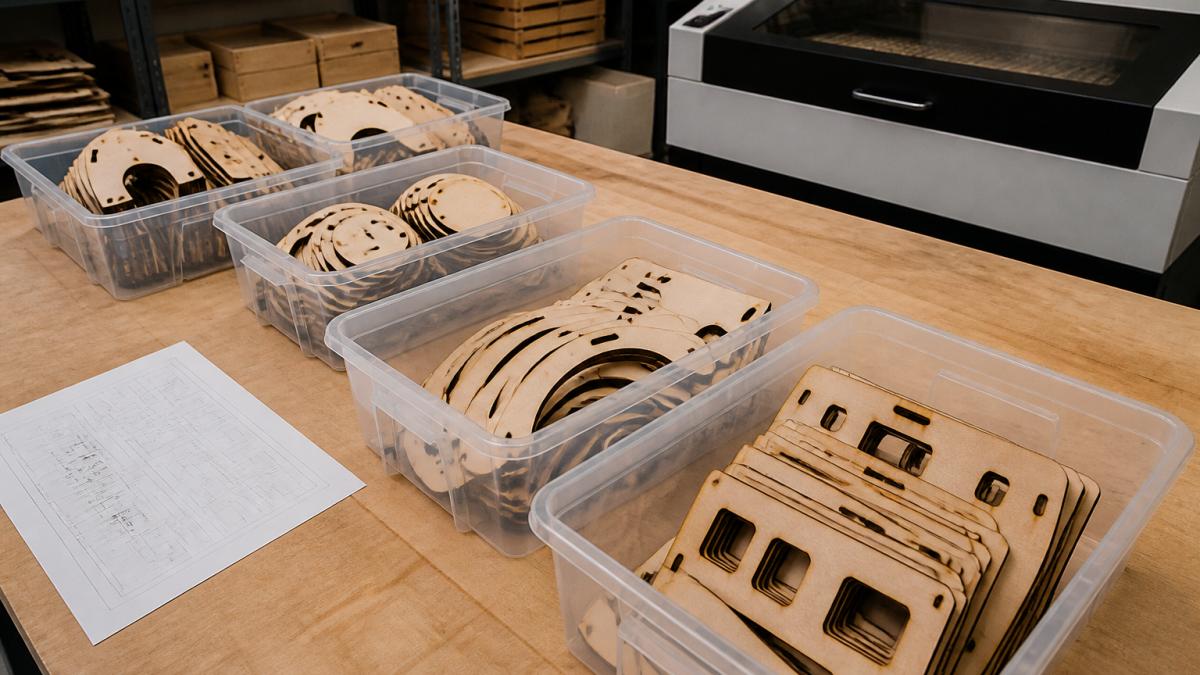
Sorting by part type feels efficient until you have to assemble twenty orders. Sort by order instead, so every bin contains everything needed for one batch.
- Sort pieces into trays as they come off the bed
- Label each tray with the order number and part name
- Check quantities against the traveler before the tray leaves the bench
- Move completed batches to a packing area, not back into general stock
Labeling That Survives Handling
Paper labels fall off. Use a labeling method that matches your shop's handling:
- Bin labels with order number, part name, and quantity, printed from the traveler
- Part-level marks only where the part will not be visible in the finished product, a small Sharpie dot on a hidden face is enough for most assemblies
- Color-coded trays by material or by due date, so a glance across the bench tells you what is ready
The Job Traveler as the Traceability Backbone
The traveler is not paperwork, it is the physical link between the file and the parts. Every tray carries a copy, and every station initials the stage it completed. When a part is missing, the traveler tells you whether it was never cut, cut and lost in sorting, or packed and shipped short.
Batch Metrics That Improve Throughput
Traceability only pays off if you measure it. Track these on the traveler or a simple spreadsheet:
- Sheet yield, parts per sheet versus the theoretical maximum
- Cut time per batch versus estimated time
- Scrap rate, square inches of material wasted per order
- Rework count, parts recut because of file or sorting errors
- On-time completion, batches finished by the due date
Review these weekly. A rising rework count almost always traces back to a naming or versioning failure upstream, not to the operator at the machine.
This closes the loop. The file you cut, the parts you sorted, and the box you ship all carry the same order number, and the metrics tell you whether the system is actually working.
Frequently Asked Questions
How should I organize files for laser cutting?
Start with a folder tree split by status: intake, approved, in production, and archived. Each order gets its own folder holding the source design, exported cut file, and a job sheet. Keep a separate library for reusable templates and material profiles. This way any laser cut files tied to a live order are never mixed with finished work, and you can hand a folder to a machine operator without explaining anything.
How should I name laser cutting files for batch production?
Use a fixed pattern that puts the sortable parts first: order number, part name, material, thickness, and version. For example, 1042-drawer-front-acrylic-3mm-v2.svg. Avoid spaces and vague words like final or new. Laser cut file naming conventions like this let you sort a folder alphabetically and instantly see which files belong to the same job, which version is current, and which material each piece is cut from.
How do I group multiple laser cut designs on one sheet?
Group pieces by order first, then by material and thickness, since mixing materials on one sheet wastes a run. When nesting laser cut parts, rotate each piece to fit gaps, keep at least 3-5 mm between cuts for wood and acrylic, and leave a margin at the sheet edge for clamping. Label each part with its number directly in the cut file so the sheet itself tells you what everything is after cutting.
How do I split a large laser cutting file into sections?
Split by material, by sheet, or by assembly stage, whichever keeps each file under your machine's bed size. Export each split as its own file with the same order number and a section suffix, such as 1042-sheet-A and 1042-sheet-B. Record the split in your job traveler template so the operator knows how many sheets the order needs and in what cut order they run.