 ultimate-guide
Professional Results With Laser Cutters: 2026 Guide
Table of Contents
- Why Professional Laser Results Come Down to Preparation
- Laser Cutter Settings for Different Materials
- How to Get Clean Laser Cuts on Every Pass
- Build a Laser Cutter Material Test Grid Before Every New Batch
- Laser Engraving Image Preparation for Consistent Detail
- Jigs, Fixtures, and Workpiece Holding for Repeatable Runs
- Lens and Mirror Calibration and Laser Cutter Maintenance
- Post-Processing and Edge Finish: The Step Most Makers Skip
- Frequently Asked Questions
Last Updated: October 19, 2026
Why Professional Laser Results Come Down to Preparation
Most disappointing laser projects fail before the machine ever fires. Getting professional results with laser cutters is a preparation discipline first and a machine-settings exercise second.
Laser cutting preparation is the process of validating material, focus, power, speed, and file structure before committing a design to a workpiece. It is the difference between a clean, sellable product and a charred test piece.
Below, we break down the settings, calibration routines, and holding methods that separate repeatable production from one-off guesswork. The LightBurn documentation on cut settings is a useful reference for parameter structure while you work through each stage.
Laser Cutter Settings for Different Materials
Laser cutter settings for different materials follow one rule: establish a baseline for the exact sheet in front of you, then adjust one variable at a time.
Start with the manufacturer's suggested range for the material category, then bracket it. Run a small test piece at three power levels and three speeds, inspect the edge, and narrow from there.
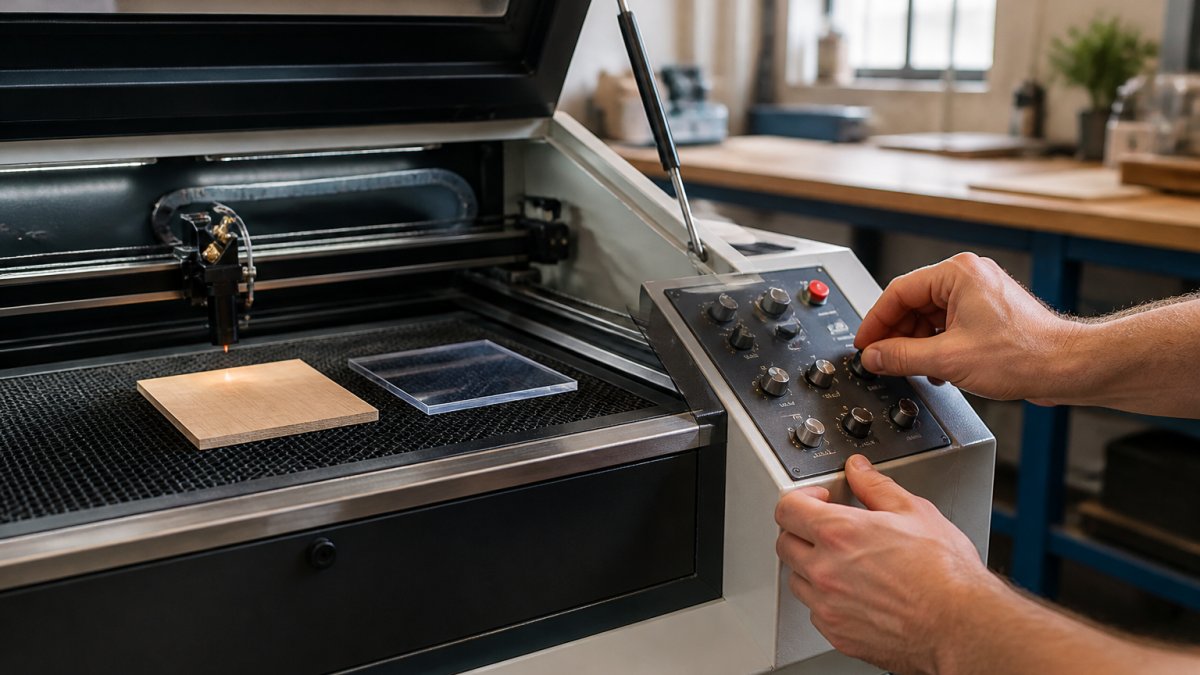
Power, Speed, and Focal Length by Material
| Material | Power Approach | Speed Approach | Focus Note |
|---|---|---|---|
| Plywood | Moderate, raise for thick stock | Slower on thick stock | Focus at top surface |
| Acrylic | Low to moderate | Faster cuts reduce edge melting | Focus slightly into material |
| Leather | Low | Fast passes over slow burns | Focus at surface |
| Coated metal | Requires marking compound | Follow coating spec | Verify focal length first |
Thickness matters more than most guides admit. A setting that cuts 3 mm plywood cleanly will char 6 mm stock at the same speed. Measure material thickness with calipers before every batch and log the result next to your saved parameters.
Why Each Material Behaves Differently
- Plywood and solid wood: The laser vaporizes lignin and cellulose, leaving a carbonized edge. Thick stock needs slower speed rather than more power, because excess power widens the kerf and deepens char without improving separation. Watch for knots and glue pockets, they cut at different rates than surrounding grain.
- Cast vs. extruded acrylic: Cast acrylic cuts and engraves to a frosted white; extruded acrylic can gum and produce a stringy edge. Lower power with faster passes keeps the edge from melting back. Focus slightly into the material to reduce the kerf taper on thick sheet.
- Leather: Low power and fast passes prevent the surface from scorching before the cut completes. Vegetable-tanned leather chars differently than chrome-tanned, so test both if you switch suppliers.
Reading the Kerf and Logging Parameters
Kerf, the width of material removed by the beam, typically runs a few tenths of a millimeter and changes with material, thickness, focus, and lens. For parts that must fit together, measure the kerf on a test coupon and offset your vector paths by half the kerf width. A common pattern in production shops is to keep a job log with material supplier, thickness, power, speed, focus offset, and measured kerf, so a repeat order starts from a proven baseline instead of a guess.
How to Get Clean Laser Cuts on Every Pass
Clean laser cuts come from three variables working together: air assist, focus, and beam alignment. If any one is off, you get charring, wide kerf, or incomplete separation regardless of how carefully you tuned power and speed.
Air assist is the most underrated. It clears smoke and debris from the cut path, which reduces burn marks and flare-ups. Weak airflow shows up as brown edges on light wood and hazy residue on acrylic.
Air Assist, Focus, and Beam Alignment
- Air assist: Confirm consistent pressure at the nozzle, not just at the compressor. A partially blocked nozzle mimics a power problem.
- Focus: Use a focus gauge or the machine's autofocus, then verify with a test cut. Focal length errors widen kerf width and soften engraving depth.
- Beam alignment: Check that the beam hits the center of each mirror and the lens. Misalignment produces angled cuts and inconsistent power across the bed.
Build a Laser Cutter Material Test Grid Before Every New Batch
A laser cutter material test grid is a small calibration coupon that maps power and speed combinations across a single piece of stock.
Build the grid in your design software: a matrix of small squares, each labeled with its power and speed value, sized to fit scrap from the batch.
- Confirm material type, supplier, and thickness
- Cut a 3x3 or 4x4 power/speed grid
- Record the winning parameters in your job log
This is the single habit that turns inconsistent output into a repeatable process. Many small shops keep a binder of test coupons organized by supplier and thickness.
Laser Engraving Image Preparation for Consistent Detail
Laser engraving image preparation determines whether a photo engraves with clean tonal range or turns into mud. The machine can only render what the file gives it, so resolution, contrast, and path type must be decided before export.
Start with a high-resolution source, convert to grayscale, and adjust contrast so midtones do not collapse. Then choose vector or raster based on the job.
Vector vs. Raster: Choosing the Right Path
- Vector paths suit logos, line art, and cut outlines. They scale cleanly and cut fast.
- Raster engraving suits photographs, gradients, and shading. It builds tone dot by dot.
- Hybrid files combine both: raster for the image, vector for the cut line.
Matching DPI settings to the material matters. Too high a DPI on wood burns adjacent lines together; too low leaves visible banding. Test at two DPI values on scrap before committing.
This is where file preparation tools earn their place. For the technical background on resolution and image modes, the xTool support guides on image engraving cover the fundamentals well.
Jigs, Fixtures, and Workpiece Holding for Repeatable Runs
Repeatable runs depend on the workpiece sitting in the same place every time. Jigs and fixtures solve that, and they are the gap most beginner guides skip entirely.
A simple jig is a cut-out bed insert that locates a blank by its edges. For tumblers and mugs, a rotary attachment or a custom cradle holds the curve consistently. For flat production, a corner fence cut from scrap plywood works.
- Corner fence: two strips forming a right angle, pinned to the bed
- Nested cutout: a recessed pocket matching the blank's outline
- Rotary cradle: supports cylindrical work at a fixed height
Lens and Mirror Calibration and Laser Cutter Maintenance
Lens and mirror calibration keeps the optical path clean and centered, which preserves power delivery and cut quality over time.
Clean lenses and mirrors with the manufacturer's approved solution and lint-free wipes, following the recommended interval rather than waiting for visible soot.
Water cooling deserves the same discipline. Verify coolant level and temperature, inspect for algae or debris, and follow the chiller schedule.
Post-Processing and Edge Finish: The Step Most Makers Skip
Post-processing turns a functional cut into a sellable product. Most makers stop at the machine, which is exactly why their work looks amateur next to a professional shop's output. The professional angle here is sequence and standard: do the steps in the right order, use the right abrasive or solvent for the material, and inspect against a written standard before anything ships.
A Repeatable Post-Processing Sequence
- Deburr and knock down sharp edges before any finish. A light pass with a fine abrasive or a deburring tool removes the raised lip left by the beam.
- Remove residue, soot, masking adhesive, or marking compound, with the material-appropriate method. Residue trapped under a finish shows through.
- Refine the edge to the target finish for that material (sanding, polishing, burnishing).
- Clean and dry before finishing; moisture and dust cause adhesion failures.
- Apply finish or assembly last, then inspect under consistent lighting.
Material-Specific Edge Finishing
- Wood: Sand progressively, start around 120 grit to remove char, move to 180-220 for a paint-ready edge, and stop before you round the profile. Sanding char off light wood reveals grain but can also lighten the edge relative to the face, so test on scrap. Masking tape applied before cutting reduces surface scorch and peels away cleanly; remove it before sanding so adhesive does not load the abrasive.
- Acrylic: Remove masking, then flame-polish or wipe the cut edge with an approved solvent to restore clarity. Flame-polishing takes practice, too much heat crazes the edge and can crack thin sheet. Test on offcuts and keep the flame moving.
- Leather: Burnish edges with a slicker and edge finish, or seal to prevent fraying. Sand the edge square first; burnishing a ragged edge just locks in the raggedness.
Inspection Standard Before Shipping
Inspect every piece under consistent lighting, ideally the same lamp and background for every batch, and check against a written standard: edge squareness, kerf consistency, absence of char or crazing, and finish uniformity. Edge finish is the first thing a buyer notices and the last thing most sellers check. Photograph a known-good piece and keep it as the reference against which each batch is compared.
Frequently Asked Questions
How do you get clean cuts with a laser cutter?
Clean cuts come from four things working together: correct focus, adequate air assist, a clean lens and mirrors, and settings matched to the material. Run a test grid on scrap of the same thickness before cutting a final piece. Keep kerf width in mind when designing, since the beam removes a small amount of material along the vector path. Masking tape on the surface reduces scorch marks on light woods and acrylic, and a single strong pass usually beats multiple weak ones for edge finish.
What laser cutter settings should I use for different materials?
There is no universal chart because power, speed, and focal length depend on your machine wattage, tube condition, and material thickness. Start with the manufacturer's recommended ranges for your CO2 or diode laser, then dial in with a material test grid. Thin acrylic cuts fast at moderate power, while 6 mm plywood needs slower speed and full power with air assist. Always record the settings that worked so you can repeat them on the next batch.
Why are my laser cuts uneven or charred?
Charring and uneven cuts usually trace back to four causes: a dirty lens or misaligned mirror, insufficient air assist, too much power at too slow a speed, or inconsistent material. Check the optical path first, then confirm focus on the actual surface of the workpiece. If the material has voids or glue pockets, even perfect settings will produce patchy results. Run a small test grid on the same sheet before committing a full production run.
How do I prepare an image for laser engraving?
Start with a high-resolution image, at least 300 DPI at final size, and convert it to grayscale before adjusting contrast so shadows and highlights stay distinct. Decide whether the job is raster engraving (photos, gradients) or a vector path (logos, cut lines) and export accordingly. For multi-layer engraving projects, split the image into depth layers so each pass has a defined engraving depth. Tools like Laser Layer Maker export directly to LightBurn SVG, DXF, and xTool Studio formats.
How can I get consistent results from a laser cutter?
Consistency comes from controlling variables: the same material supplier and batch, a documented settings sheet per material, a fixed focus method, and regular maintenance on lenses and mirrors. Build jigs and fixtures so workpieces sit in the same position every run. Log every job with power, speed, DPI, and focal length so a repeat order takes minutes to set up instead of hours of guesswork.
How do focus and air assist affect laser cutting results?
Focus determines the beam's spot size, and a spot that is too wide spreads heat, widening kerf width and scorching edges. Set focus on the material surface for cutting and slightly into the material for deeper engraving. Air assist clears smoke and debris from the cut path, reduces flare-ups, and produces cleaner edges, especially on wood and acrylic. Both should be checked before every production run, not just when something looks wrong.
Getting professional results with laser cutters is a system, not a setting. The challenge is that file preparation eats the most time and causes the most rework. Laser Layer Maker handles that stage by turning any photo, cartoon, or logo into precise engraving-depth layers, with clean exports to LightBurn SVG, DXF, and xTool Studio. If you are tired of fixing layers by hand, get started with Laser Layer Maker and spend your hours cutting instead of preparing.