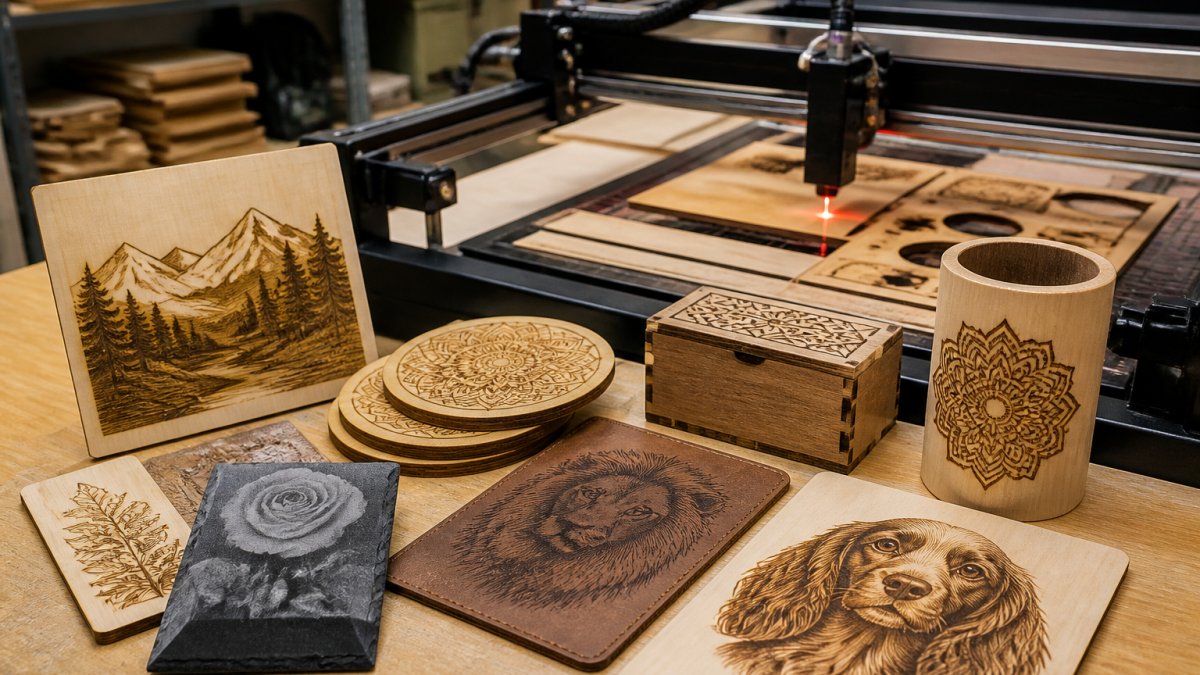
 ultimate-guide
Professional Laser Engraving Design Tips 2026
Table of Contents
- Why Design Quality Determines Your Laser Engraving Results
- Choosing the Right Laser Engraving File Formats for Your Workflow
- Photo Engraving Settings: From Image to Production File
- Using a Laser Engraving Test Grid to Dial In Your Settings
- Real Laser Engraving Design Examples: What Works and What Doesn't
- Simplifying Your Design Workflow for Batch Production
- Handling Complex Images: Gradients, Shadows, and Detail
- Frequently Asked Questions
Last Updated: October 18, 2026
Why Design Quality Determines Your Laser Engraving Results
The difference between a mediocre engraving and a professional one isn't the machine. It's the file.
We've watched hundreds of creators upload the same image to different machines and get wildly different results.
Professional laser engraving design starts before you hit the engrave button, with understanding how your design translates into depth, contrast, and detail on wood, metal, acrylic, or leather.
The real work happens in three places: source file format, material-specific settings, and your test process.
Choosing the Right Laser Engraving File Formats for Your Workflow
Your file format determines what your laser engraver can do with your design. Choosing the wrong one means lost detail, scaling issues, or compatibility headaches.
The two formats that dominate professional laser engraving workflows are SVG and DXF. Both are vector formats built from lines and curves rather than pixels, so they scale infinitely without quality loss, unlike raster images (JPG, PNG), which turn fuzzy and pixelated when enlarged.
SVG vs. DXF: When to Use Each Format
SVG (Scalable Vector Graphics) is the modern standard. LightBurn, xTool Studio, and most contemporary laser software prefer SVG because it preserves layer information, color coding, and stroke properties.
DXF (Drawing Exchange Format) is older but widely supported. Created by AutoCAD, it works well for precise geometric designs like signage, technical drawings, or architectural etchings.
The practical rule: if your software supports SVG and your design uses layers or color coding, choose SVG. If you're working with simple line art or your machine has legacy driver issues, DXF is your fallback.
Export Settings for LightBurn and xTool Studio
Export settings are where most creators lose detail without realizing it.
In LightBurn, import your SVG and check the stroke settings. Thin lines (under 0.1 mm) may not engrave visibly on some materials.
xTool Studio works differently: it converts your design into raster or vector mode depending on what you select. Choose raster for photo engraving, vector for logos and text.
One common mistake: exporting at the wrong DPI (dots per inch). For photo engraving, 300 DPI is standard.
Photo Engraving Settings: From Image to Production File
Converting a photograph into a laser-ready file is where most hobbyists struggle. A photo has millions of color values; your laser only understands depth. That translation is where quality is won or lost.
Resolution, Contrast, and Depth Mapping
Start with resolution. A photo at 72 DPI looks fine on screen but engraves soft and unclear.
Contrast is your second lever.
Depth mapping converts grayscale values into laser power levels: pure black gets maximum power (deepest cut), pure white gets none, and grays get proportional power.
The workflow: import your photo, increase contrast by 20%, convert to grayscale, check the histogram to ensure you have true blacks and whites, then export to your laser software as a raster image at 300 DPI.
Material-Specific Power and Speed Settings
The same photo engraved on wood and metal requires completely different settings. Wood is forgiving, it burns easily and shows depth naturally.
For wood, start at 60-70% power and 300-400 mm/minute speed, testing a small area first. Too light? Increase power by 5% and retest. Too dark or scorched? Decrease by 10%.
For anodized aluminum and stainless steel, the settings flip. Start at 40-50% power and 200-250 mm/minute speed.
Acrylic engraves cleanly at 80-90% power and 400-500 mm/minute. Leather requires 30-40% power and slow speeds (150-200 mm/minute) because it scorches easily. These are starting points, not absolutes.
Using a Laser Engraving Test Grid to Dial In Your Settings
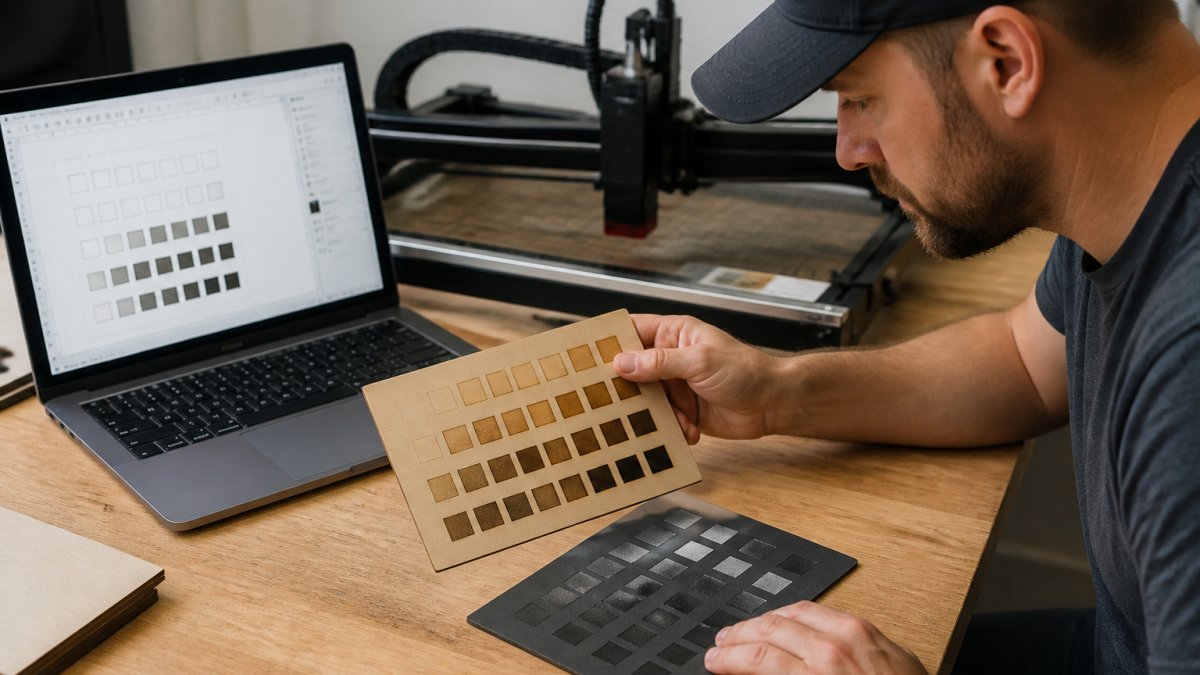
A test grid is your quality control tool: a single file with dozens of small squares, each engraved at a different power and speed combination. In 10 minutes you can see exactly which settings produce the result you want on a specific material.
Building Your Test Grid Template
Create a 10x10 grid of 0.5-inch squares in your design software (Illustrator, Inkscape, or Corel Draw). Label columns with power percentages (20%, 30%, 40%, etc.) and rows with speeds (100, 150, 200 mm/minute, etc.).
In LightBurn, you can automate this using the "Array" feature.
The grid should be small enough to fit on a 4x6 scrap of your material. Use the same material you'll be engraving on for production, wood grain, metal finish, and acrylic thickness all affect results.
Interpreting Results and Adjusting for Production
After running the test grid, examine each square under good lighting for three things: darkness, clarity (edge sharpness), and surface condition (scorching, discoloration, or warping).
The ideal square is the darkest one without visible scorching. Mark it. That's your baseline power and speed for that material and that photo. Write it down, you'll use these settings for every similar project.
If 60% power at 300 mm/minute produces clean, dark results on walnut, use those settings for all future walnut engravings with similar photo contrast. You've eliminated guesswork, this is how production shops maintain consistency.
Real Laser Engraving Design Examples: What Works and What Doesn't
Seeing successful designs and failed ones side-by-side teaches you more than theory ever will. Patterns emerge about what the laser can actually handle.
Successful Multi-Layer Designs for Wood and Metal
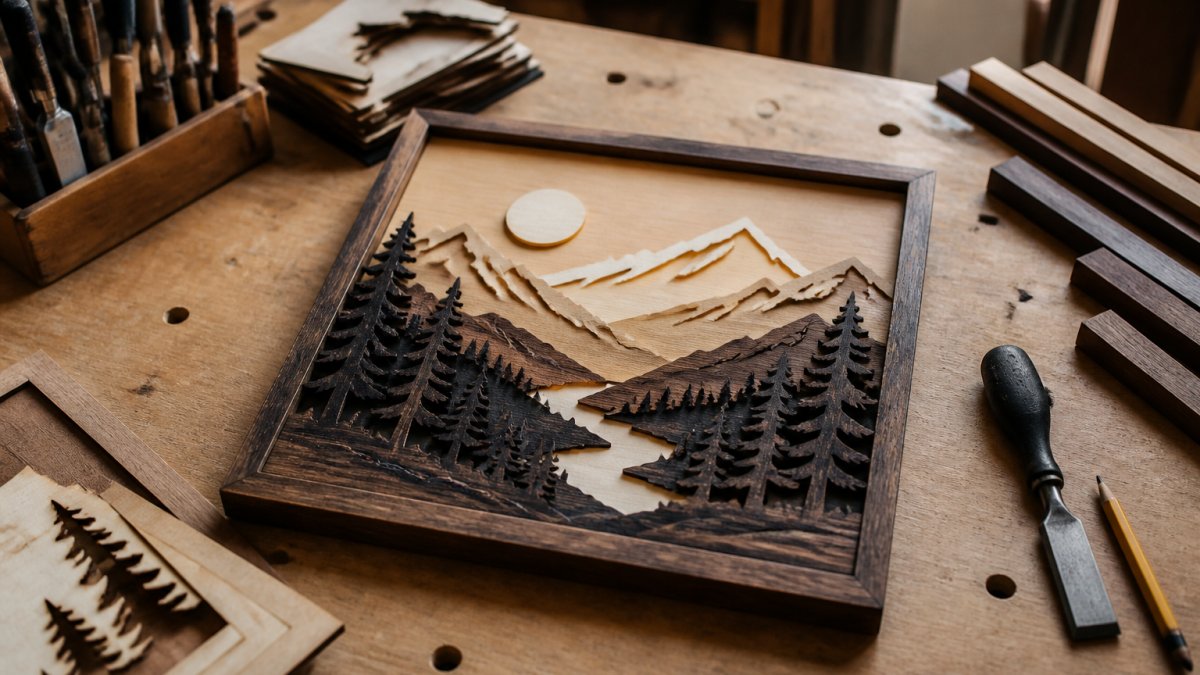
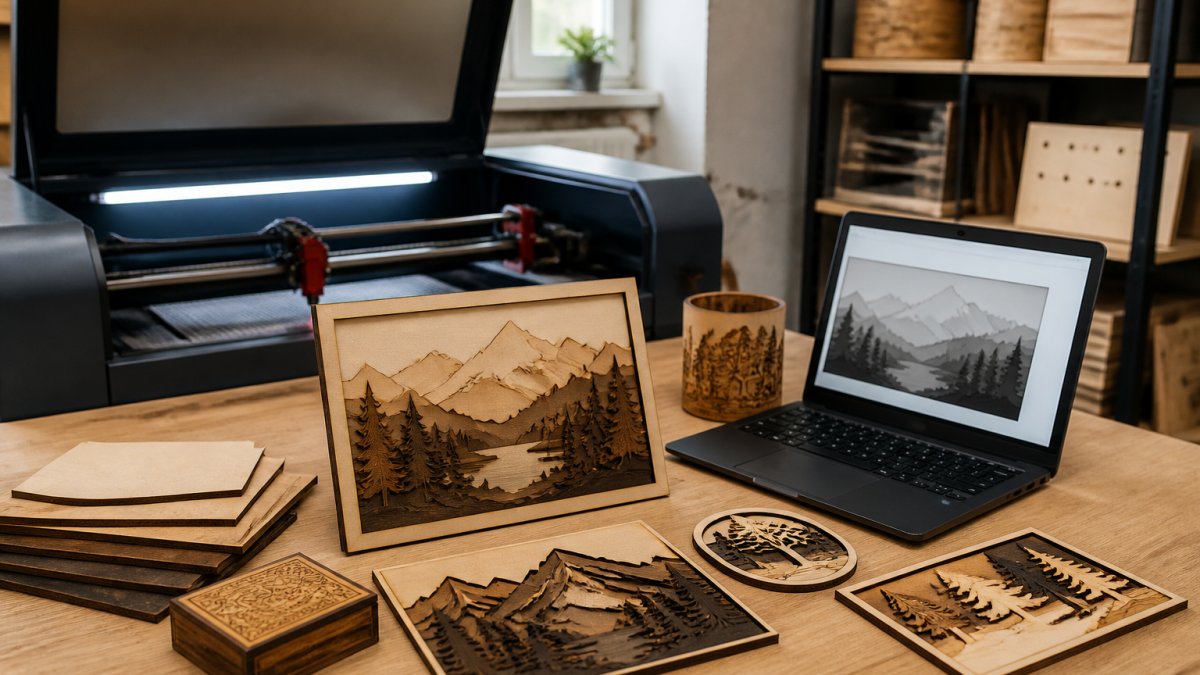
A professional multi-layer wood engraving typically has three to five distinct depth layers: the deepest (maximum power, slowest speed) creates shadows and outlines, mid-depth layers add detail and shading, and the shallowest adds fine details like text or thin lines.
Successful designs separate these layers by color in the source file. Red lines engrave at one power setting. Blue lines at another. Black lines at a third.
For metal, successful designs are typically high-contrast and simpler than wood designs. A logo with bold outlines and solid fills engraves crisply.
Common Design Mistakes and How to Fix Them
The most common mistake is using raster images (JPG, PNG) for vector work. A logo imported into LightBurn as raster engraves soft and lacks crispness.
The second mistake is ignoring material thickness. A design that works on 0.25-inch wood will engrave differently on 0.5-inch wood because the laser beam has a slight angle. Thicker material means the beam spreads slightly, softening edges.
The third mistake is over-complicating gradients. A smooth black-to-white gradient looks beautiful on screen but engraves as a muddy transition on most materials.
Simplifying Your Design Workflow for Batch Production
When you're engraving dozens of orders a month, design efficiency becomes profit. Small process improvements compound into hours saved per week.
Automating Layer Separation and File Preparation
For photos or complex designs, layer separation is the bottleneck: manually adjusting contrast, converting to grayscale, and setting power levels takes 15-20 minutes per design.
The workflow becomes: upload your design, and download your layered file. The software has already calculated the optimal depth layers and exported in your chosen format (SVG for LightBurn, DXF for xTool). You skip the manual layer work entirely.
For batch orders, this means you can prepare custom designs more efficiently. If you're running an Etsy shop with personalized orders, this scales your capacity.
Quality Control Checkpoints Before Cutting
Before engraving a batch, run a single test piece to catch design errors before they're multiplied across 50 units. Check alignment (centered and correctly sized?), depth (does laser power match your material?), and clarity (are fine details sharp or fuzzy?).
If alignment is off, adjust in your software and retest. If depth is wrong, adjust power by 5% and retest.
Only after the test piece passes do you run the full batch. This single checkpoint prevents wasting material and time on designs that won't sell.
Handling Complex Images: Gradients, Shadows, and Detail
Complex photographs with rich detail, soft shadows, and smooth gradients are the hardest to engrave well.
The solution is strategic simplification. Take your source photo and increase contrast by 25-30%.
For images with lots of shadow detail, use curves adjustment (available in Photoshop, GIMP, or Lightroom) to darken shadows without losing detail.
For gradients, replace them with bands of solid color. A gradient from light blue to dark blue becomes three zones: light blue, medium blue, dark blue.
These techniques work because laser engraving is fundamentally depth-based, not color-based.
Professional laser engraving design isn't about having the most expensive machine. LightBurn's official documentation on file formats provides additional technical guidance on import settings, and xTool's material settings database offers pre-configured power and speed recommendations for dozens of materials.
Frequently Asked Questions
How do you prepare a design for laser engraving?
Start with a high-resolution image (300 DPI minimum) and convert it to your target file format, SVG for vector work, DXF for precision cuts, or PNG/JPG for raster engraving. Clean up contrast, remove unnecessary detail, and map your design to the material you're using. Test your settings on scrap material first. Tools like Laser Layer Maker automate layer separation, turning photos into production-ready files that split depth information across multiple passes.
What laser engraving file formats work best with LightBurn and xTool Studio?
SVG and DXF are industry standards for both platforms. SVG works best for vector graphics and logo work, while DXF handles precision mechanical designs. For photo engraving, export as PNG or JPG at 300 DPI, then import into your software for raster conversion. Always verify your software's export settings match your laser specifications, power, speed, and frequency. Check the machine manual for recommended formats; most modern engravers accept both vector and raster files.
What resolution should an image be for laser engraving?
Aim for 300 DPI (dots per inch) for sharp, detailed results. Lower resolutions (72-150 DPI) work for large designs where fine detail isn't critical, but you'll lose sharpness in text and small features. For photo engraving with gradients and shadows, 300 DPI is the professional standard. File size matters too: very large files can slow your software and machine. Resize your image to the final engraving size before exporting to keep file size manageable and ensure consistent quality.
How do layers improve laser engraving designs?
Layers let you control depth, creating multi-level effects that add dimension to your work. Each layer represents a different power or speed setting, so a photo with three layers can show light gray, medium gray, and deep black in one pass. This is especially powerful for portrait engraving, personalized gifts, and signage. Automated layer tools split your image into precise depth zones, eliminating manual masking and reducing production time.
What design mistakes should you avoid when laser engraving?
Don't use pure white areas in raster designs; they won't engrave. Never ignore material compatibility: wood burns differently than acrylic or anodized aluminum. Skip overly complex gradients with too many color stops; they create banding. Always test on scrap material first. Run a test grid with your exact settings before committing to a production batch.
How do you convert a photo into a laser engraving file?
Import your photo into design software or a specialized tool like Laser Layer Maker. Adjust contrast and brightness to emphasize the details you want engraved. Convert to grayscale if working with raster engraving. If using a layer-splitting tool, it will automatically map tones to depth levels and export as SVG or DXF. For manual conversion, use threshold or posterize filters to create distinct tonal zones, then export at 300 DPI. Test the result on scrap material to verify the tonal range matches your laser's capabilities.
How do you test a laser engraving design before production?
Create a test grid on scrap material matching your production substrate. Include your design at different power and speed settings, typically a 3x3 or 4x4 grid covering 50-100% power and 20-100% speed. Engrave the grid and photograph the results. Note which settings produce the sharpest detail, best contrast, and cleanest edges. Use these settings for your first production batch, then make minor adjustments if needed. For complex multi-layer designs, test each layer separately before running the full production file.
What file format is best for laser engraving?
SVG is best for vector designs (logos, text, precise shapes) because it scales without quality loss. DXF works well for technical drawings and precision cuts. For photo engraving, PNG or JPG at 300 DPI is standard, then converted to raster format in your software. Always export in a format your specific machine supports, check your LightBurn or xTool manual. When in doubt, SVG is the safest choice for professional results because it maintains crisp edges and works across all modern laser systems.