 listicle
Laser Cutting Software for Custom Signs: 2026 Guide
Table of Contents
- Best Laser Cutting Software for Custom Signs
- Laser Layer Maker: Image-to-Layer Conversion for Sign Production
- LightBurn Software for Signs: Design and Machine Control
- Free Laser Cutting Software Options
- Laser Cutting Design Software: Paid Alternatives
- Multi-Layer Sign Design: Workflows and File Preparation
- How to Choose the Right Software for Your Sign Shop
- Frequently Asked Questions
Last Updated: October 11, 2026
Best Laser Cutting Software for Custom Signs
Choosing the right laser cutting software determines how quickly you move from design concept to finished product, whether you're running a small Etsy shop or managing a fabrication studio.
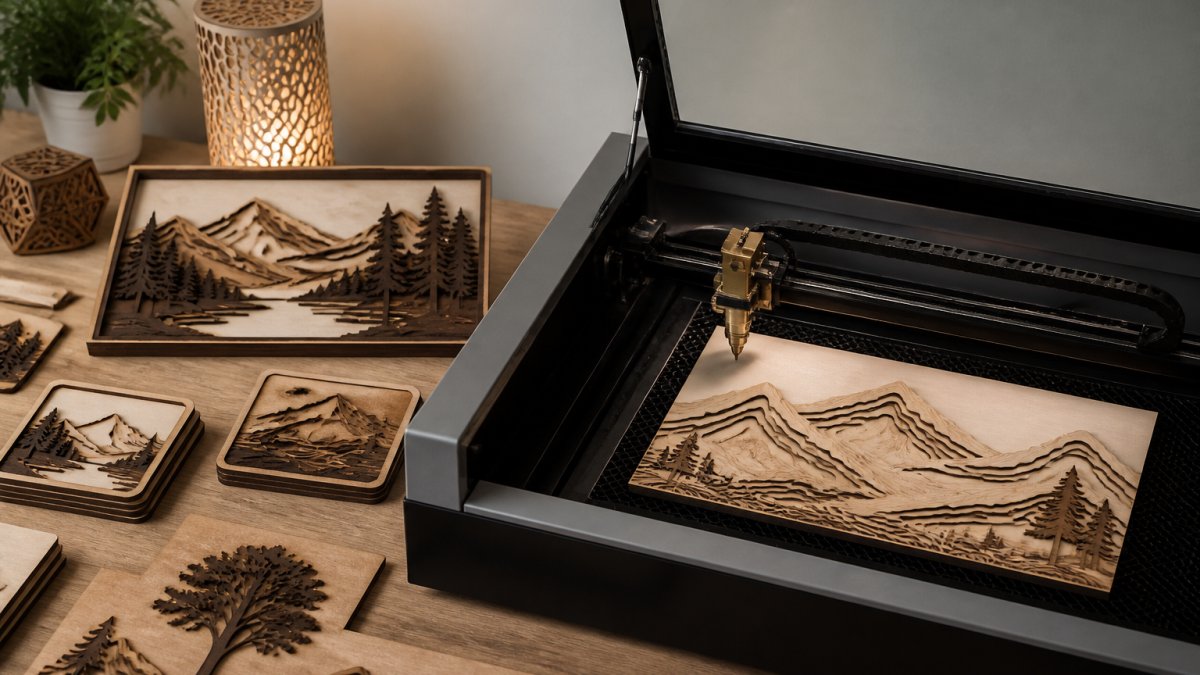
The full sign workflow requires multiple tools. This guide covers essential software options for design, file preparation, machine control, and multi-layer production.
Quick Comparison Table
| Tool | Best For | Key Strength | Free Option |
|---|---|---|---|
| Laser Layer Maker | Image-to-layer conversion | Automatic depth layering from photos | No |
| LightBurn | Design + machine control | Combined design and laser control | 30-day trial |
| Inkscape | Vector artwork creation | No-cost design option | Yes |
| Adobe Illustrator | Professional design work | Industry-standard precision | 7-day trial |
| LaserGRBL | Direct machine control | Free laser software | Yes |
Laser Layer Maker: Image-to-Layer Conversion for Sign Production
The hardest part of multi-layer sign work is preparing the file. Converting a photo or logo into separate depth layers takes hours in traditional design software.
Laser Layer Maker automatically splits images into precise engraving-depth layers, generating files ready for LightBurn, DXF export, or xTool Studio, eliminating manual layer work.
LightBurn Software for Signs: Design and Machine Control
LightBurn combines design and laser control in a single interface. You design artwork, adjust cut and engraving settings, and send directly to your laser without switching applications.
LightBurn lets you control laser power, speed, and frequency per layer, critical for multi-layer signs where different materials need different settings. It supports most laser types, including CO2 and diode machines.
LightBurn's learning curve is steeper than it looks. If you're new to laser cutting, expect to spend time learning layer management and power settings.
The software works as your primary tool for sign production once you move past the setup phase. Many small shops run their entire workflow through LightBurn alone.
Free Laser Cutting Software Options
Several free tools can handle parts of your sign workflow, though you'll likely combine multiple applications.
Inkscape for Vector Artwork
Inkscape is the free standard for vector design, handling shapes, text-to-path conversion, and artwork creation. Many sign makers use it to build designs, then export to LightBurn for machine control.
Inkscape produces professional-quality vector artwork without cost, but doesn't control lasers directly. Export as SVG or PDF and import into LightBurn or another machine-control application.
LaserGRBL and Carbide Create
LaserGRBL is free laser control software for many diode and CO2 machines, handling machine communication and power/speed settings.
Both tools are free, appealing when testing whether laser production fits your business model, though with steeper learning curves than paid alternatives.
Laser Cutting Design Software: Paid Alternatives
Paid software delivers capabilities that free options don't include, built for designers and production professionals needing precision and control.
Adobe Illustrator and CorelDRAW
Adobe Illustrator is the industry standard for vector design, handling complex artwork, precise layer management, and professional typography.
CorelDRAW is a comparable alternative, though both require subscriptions that add up over time.
Neither controls lasers directly; export and import into LightBurn or another machine-control tool for best-in-class design.
RDWorks for Direct Machine Control
RDWorks is laser-control software for specific laser systems, handling layer management, power settings, and machine communication.
RDWorks is typically bundled with certain laser systems. If your machine includes it, it's worth learning as it's built for your hardware.
Multi-Layer Sign Design: Workflows and File Preparation
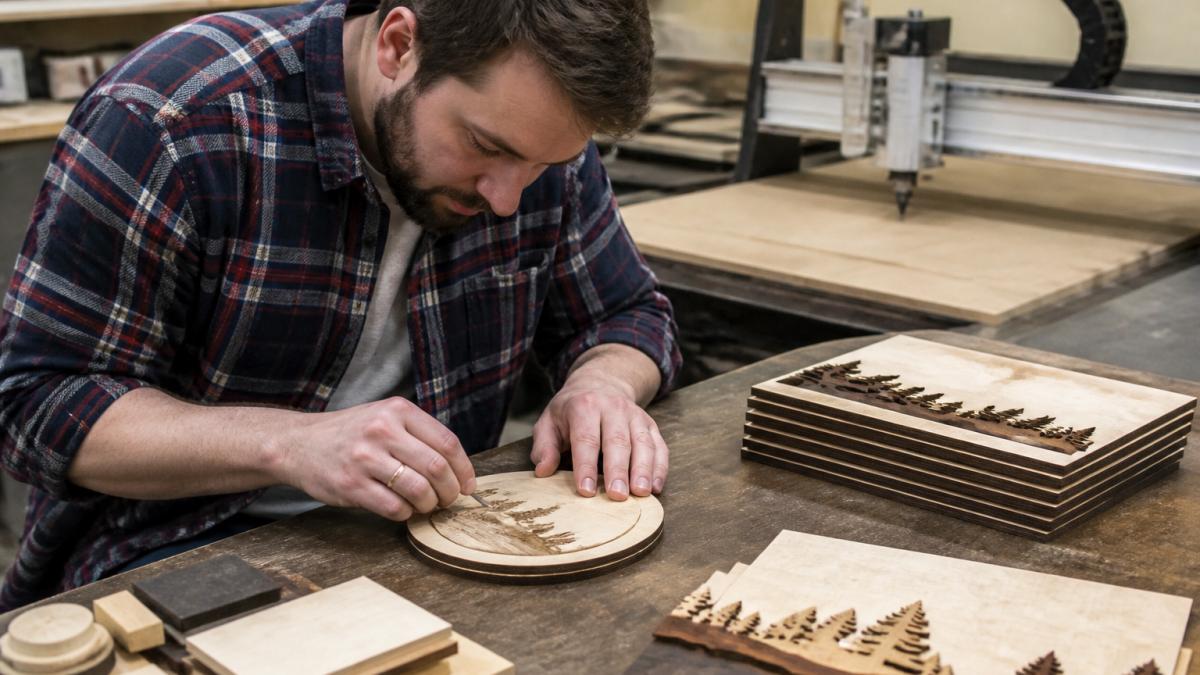
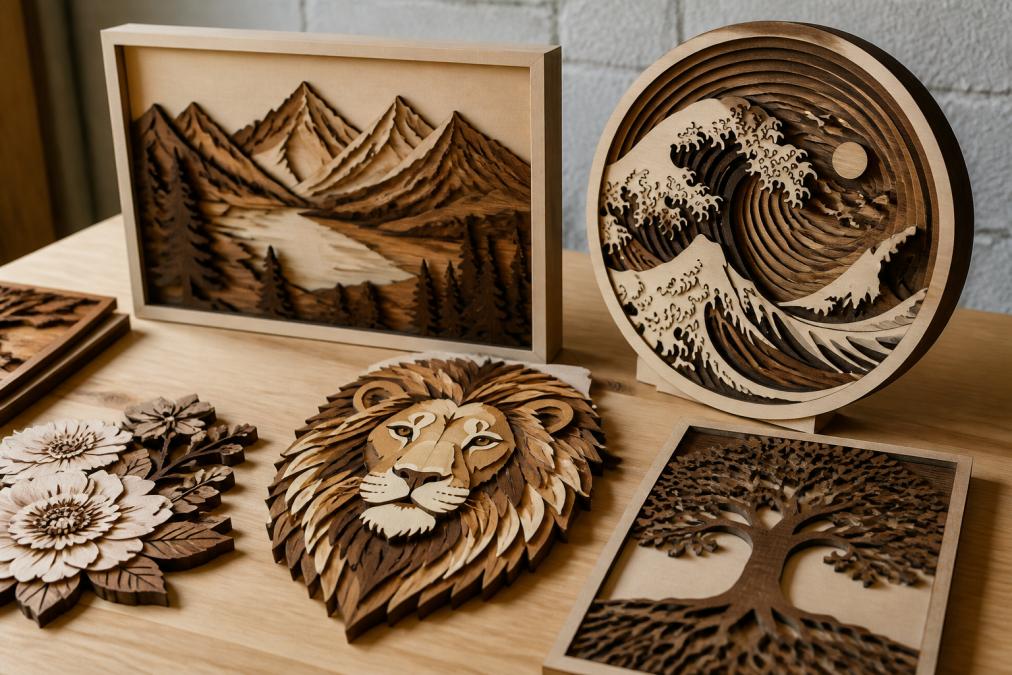
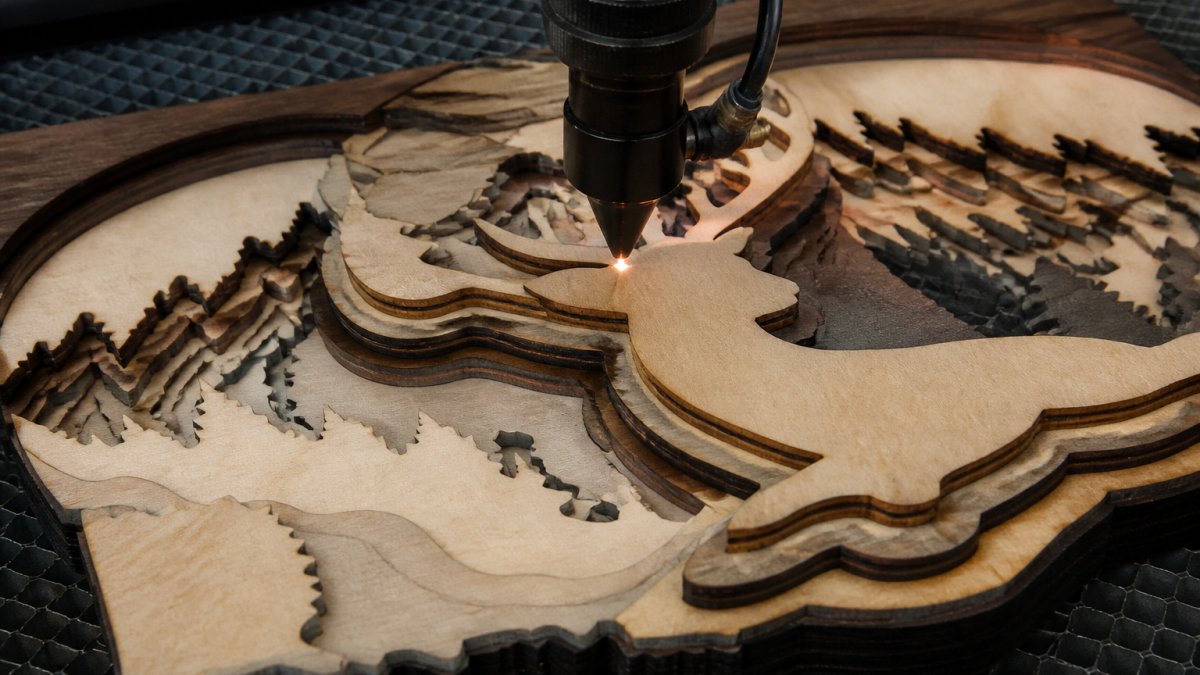
Multi-layer signs require different approaches than single-depth cutting. Getting the layer sequence right determines whether your sign looks professional. Several technical details must be correct before sending to the laser, or you'll face failed cuts and wasted material.
The File-Preparation Workflow
The workflow starts with image preparation: convert a photo or logo into separate layers based on engraving depth. Laser Layer Maker generates these automatically instead of manual Illustrator work.
Import layered files into LightBurn or your machine-control software. Assign each layer specific laser settings: power for deep engraving, lower power for detail, and different speeds by material. Wooden signs and acrylic require different power levels.
Critical File-Preparation Pitfalls
Most production failures stem from file-preparation mistakes invisible until the laser fires.
Text-to-Path Conversion
Convert text to outlines or paths before cutting. If the laser system lacks the font, it substitutes a default, changing your design. Always convert text to paths in your design software before finalizing.
Kerf Compensation
The laser beam width (kerf) removes material as it cuts. If you don't account for kerf, your finished piece will be smaller than expected.
Overlapping Vectors
Overlapping lines create double cuts or weak points. Check for unintended overlaps before sending to the laser. Use Boolean operations (union, difference) to clean up overlaps, especially for interlocking or layered designs.
Minimum Stroke Width
Very thin lines may not cut cleanly. Maintain minimum stroke width for reliable cuts. Test fine detail on scrap first. Engraving handles finer detail than cutting.
Layer and Color Mapping
LightBurn and other machine-control software use color or layer names to determine which settings apply to each part of your design.
Material-Specific Settings and Repeatability
Different materials require different laser power, speed, and frequency settings. A setting that works perfectly on 1/4-inch plywood may scorch acrylic or fail to cut 1/2-inch hardwood. Building a settings library for your specific materials and thicknesses eliminates guesswork.
Start by creating test cuts on each material you use regularly. Document the laser power (as a percentage), cutting speed (in inches per minute), and frequency (in hertz) for each material and thickness combination. Store these settings in a spreadsheet or in LightBurn's built-in settings library. Before running a production batch, always do a test cut on scrap material using your documented settings. Material moisture, age, and supplier variation can shift results, so test cuts are not optional for high-volume work.
For multi-layer signs, test the full layer sequence on scrap material before cutting your final piece. This catches layer-ordering mistakes and ensures your engraving depths are correct.
How to Choose the Right Software for Your Sign Shop
Your choice depends on three primary factors: your workflow stage, your budget, and the complexity of your designs. But two often-overlooked factors, machine compatibility and total cost of ownership, can make or break your decision.
Machine Compatibility: Laser Type and Controller
Not all software works with all laser systems. Before choosing software, verify that it supports your specific laser type and controller.
Laser Type
CO2 lasers (used for wood, acrylic, and fabric) and diode lasers (used for metal marking and some wood) have different control requirements. LightBurn supports both CO2 and diode machines, making it the most versatile choice. LaserGRBL also works with many diode and CO2 systems.
Controller Type
Your laser's controller, the circuit board that interprets software commands, determines which software can communicate with your machine. Common controllers include Ruida, Trocen, and Smoothieware. LightBurn explicitly lists compatible controllers on its website; check this before purchasing.
Operating System
LightBurn runs on Windows, macOS, and Linux. Inkscape and LaserGRBL are cross-platform. Adobe Illustrator runs on Windows and macOS only. If you're running a Linux-based system or older hardware, verify that your chosen software has a compatible version before committing.
Total Cost of Ownership
Software costs extend beyond the purchase price. Calculate your true cost over three years:
Laser Layer Maker: One-time purchase or subscription model (verify current pricing on their site). No annual renewal unless you choose a subscription tier.
LightBurn: One-time perpetual license ($60 USD at time of writing) with optional annual updates. No subscription required; you can use older versions indefinitely. The 30-day trial is fully functional, allowing you to test compatibility with your machine before buying.
Inkscape: Free, open-source. No cost, no subscription, no licensing restrictions.
Adobe Illustrator: Subscription-only, approximately $20-$55 per month depending on plan. Over three years, this totals $720-$1,980. Add-ons and plugins may increase cost.
CorelDRAW: Subscription-based, typically $15-$30 per month. Over three years, $540-$1,080.
LaserGRBL: Free, open-source. No cost.
RDWorks: Usually bundled with your laser system; no separate cost if your machine includes it.
For a small shop running high volume, the difference between a one-time $60 purchase (LightBurn) and a $20/month subscription (Illustrator) compounds to hundreds of dollars annually. If you're already paying for Illustrator for other design work, the incremental cost is lower. If you're buying software solely for laser work, free and low-cost options (Inkscape + LaserGRBL, or LightBurn alone) offer better ROI.
Decision Framework by Use Case
Starting with photos and logos:
Use Laser Layer Maker to convert images to laser-ready layers. This saves hours per project and eliminates manual layer work. Cost: one-time or subscription (verify current model).
Need design flexibility beyond image conversion:
Add Inkscape (free) or Adobe Illustrator (paid) to your workflow. These tools let you create custom artwork and refine designs before cutting.
Machine control and production:
LightBurn is the most versatile option. It works with most laser systems, combines design and machine control in one interface, and costs $60 one-time.
High-volume production with tight margins:
Combine automated layer generation (Laser Layer Maker) with LightBurn for machine control. This setup minimizes manual work and keeps your production moving. Total cost: pricing depends on quantity, dates, and delivery.
Budget-conscious or testing the business model:
Start with Inkscape (free design) + LaserGRBL (free machine control) or LightBurn's 30-day trial.
Frequently Asked Questions
What is the best free software for laser cutting custom signs?
Inkscape is the most capable free option for creating vector artwork for laser cutting. LaserGRBL and Carbide Create also offer free versions, though they focus more on machine control than design. For sign makers who need both design and cutting capabilities, free tools require combining multiple programs, Inkscape for design, then exporting to a separate control application. Paid software like LightBurn bundles these functions into one workflow.
How does laser cutting design software differ from regular design software?
Laser cutting design software includes machine control, cut-line preparation, and layer management specifically for engraving depth. Regular design tools like Illustrator or CorelDRAW create artwork but require additional steps to prepare files for laser production. Laser-focused software handles kerf compensation, contour cutting, and direct machine communication. For custom signs, this means faster file-to-production time and fewer compatibility errors.
Can I use LightBurn software for signs on any laser machine?
LightBurn supports most CO2 and diode lasers, including xTool and Glowforge machines. Compatibility depends on your specific laser model and controller. Before purchasing, verify your machine is on LightBurn's supported-devices list. Some older or specialized machines may require RDWorks or manufacturer-specific software instead. Check the software's documentation or contact support to confirm your equipment works before committing.
What file format should I export for laser-cut signs?
SVG (Scalable Vector Graphics) and DXF (Drawing Exchange Format) are the standard exports for laser cutting. Most laser software accepts these formats without loss of quality. PNG or JPG files work for engraving but not cutting, since laser cutters need vector paths to cut cleanly. If your software supports direct export to your laser machine's format (like xTool Studio or LightBurn native files), that's the fastest option, no conversion needed.
Is multi-layer sign design difficult without specialized software?
Multi-layer sign design is possible in standard design software but requires manual layer separation and depth calculation. Specialized tools like Laser Layer Maker automate this by converting photos or logos into precise engraving-depth layers, saving hours of manual work. Without automation, you must manually adjust each layer's darkness or depth setting in your laser software, which is error-prone for detailed images. Automated layer conversion is especially valuable for high-volume custom orders on Etsy or Shopify.
The software you choose shapes how efficiently you work. Laser Layer Maker automates the image-to-layer conversion that slows most sign makers down, cutting file prep time dramatically while ensuring consistent results across projects. Pair it with LightBurn for machine control, and you have a production workflow built for speed and quality. Get started with Laser Layer Maker and see how much faster your custom sign production becomes.