 how-to
Easy Way to Vectorize Logos for Laser Cutting
Table of Contents
- Why Vectorize Logos for Laser Cutting and Engraving
- Raster vs Vector for Laser Cutting: What Your Machine Actually Needs
- Step-by-Step: How to Vectorize a Logo for Laser Cutting
- Best Software for Laser Engraving Logos
- How to Prepare Photos for Laser Engraving
- Troubleshooting Open Paths, Double Lines, and Complex Gradients
- Frequently Asked Questions
Last Updated: September 28, 2026
Why Vectorize Logos for Laser Cutting and Engraving
Laser cutters do not read pixels. They read paths. An easy way to vectorize logos for laser starts with understanding that difference, because your machine can only follow lines it can trace from point to point. Feed it a JPG or PNG and you get a blurry, jagged result. Feed it a clean vector file and you get crisp edges every time.
This guide walks through the full workflow: converting raster art, cleaning paths, picking software, and fixing the problems that stall most projects.
Here's the core issue. Raster images store color as a grid of tiny squares. Vectors store shapes as math: points, curves, and lines that scale to any size without losing quality.
Raster vs Vector for Laser Cutting: What Your Machine Actually Needs
The short answer: laser cutters need vector files for cutting and can use either format for engraving. But vector wins for both in almost every case.
| Format | Type | Best For | Laser Behavior |
|---|---|---|---|
| SVG | Vector | Cutting paths, engraving outlines | Clean, scalable cuts |
| DXF | Vector | CAD workflows, cutting files | Precise geometry |
| AI | Vector | Design editing | Full path control |
| JPG/PNG | Raster | Photos, textured art | Engraving only, needs tracing |
Step-by-Step: How to Vectorize a Logo for Laser Cutting
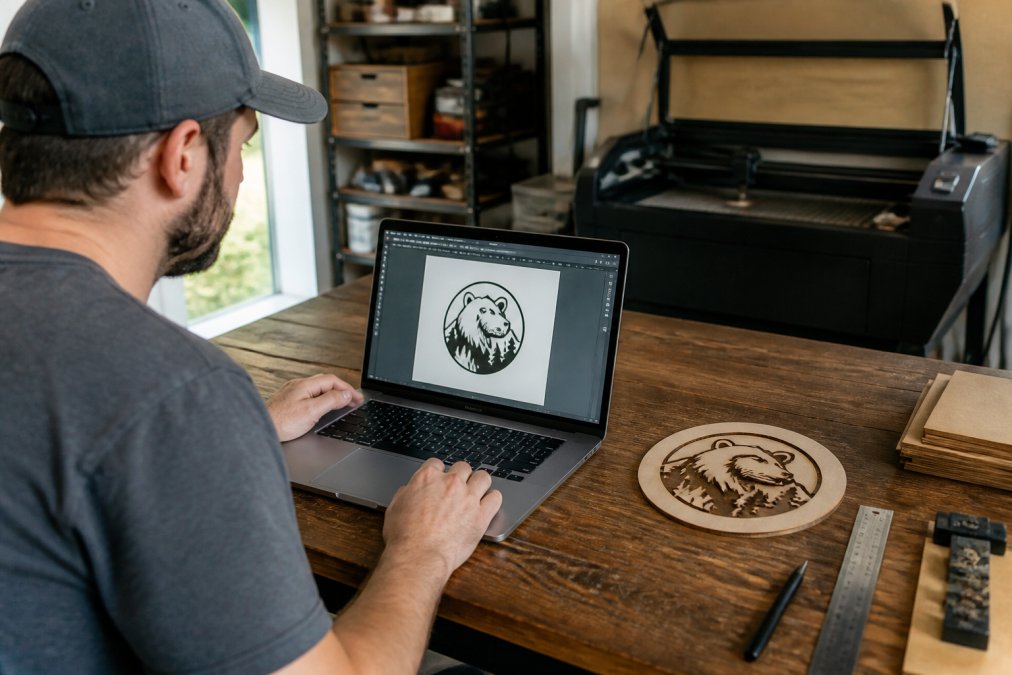
Vectorizing a logo for laser work means tracing raster art into editable paths, cleaning the nodes, and exporting a file your machine can read.
Trace the Raster Image
Start by importing your logo into your design software. Use the built-in tracing tool to auto-generate paths from the bitmap. Most tools offer a "trace bitmap" or "image trace" function that converts pixel edges into vector outlines.
Clean Up Nodes and Paths
This is where most projects succeed or fail. Auto-traced files come loaded with extra nodes, doubled lines, and open paths that break a cut.
- Delete stray anchor points that do not shape the logo
- Join open paths so every cut line is continuous
- Remove overlapping double lines that would burn twice
- Smooth bezier curves for natural-looking edges
- Check that stroke and fill settings match your intent
Export for Your Laser
Save a master copy before you export. You will reuse it for future orders.
Best Software for Laser Engraving Logos
The best software for laser engraving logos depends on your workflow. Some tools focus on path editing, others on machine control, and a few handle both. Here is how the main options compare on the factors that actually affect laser output: platform, tracing quality, and export formats.
| Tool | Platform | Price Model | Tracing Quality | Exports | Best For |
|---|---|---|---|---|---|
| LightBurn | Windows, macOS, Linux | No built-in auto-trace; relies on imported vectors | SVG, DXF, AI, PDF, PNG, JPG | Machine control, layer and cut-order management | |
| Inkscape | Windows, macOS, Linux | Strong built-in Trace Bitmap (single and multi-scan) | SVG, DXF, PDF, PNG | Free tracing and node cleanup | |
| Adobe Illustrator | Windows, macOS | Subscription | Image Trace with presets (Sketched Art, Line Art, etc.) | SVG, DXF, AI, PDF, EPS | Professional path control and typography |
| xTool Studio | Windows, macOS | Basic trace for simple shapes | SVG, DXF, PNG, JPG | Beginners on xTool machines | |
| CorelDRAW | Windows, macOS | PowerTRACE | SVG, DXF, AI, PDF, EPS | Shops already in the Corel ecosystem | |
| Laser Layer Maker | Web-based | Automatic multi-layer conversion from photos and logos | LightBurn SVG, DXF, xTool Studio | Depth-split engraving from a single image |
- LightBurn does not trace. It is a machine-control and layout tool. You still need Inkscape, Illustrator, or a conversion service to produce the vector before you import. Plan your workflow around that handoff.
- Inkscape's Trace Bitmap offers two modes worth knowing: Single Scan (one path from a brightness threshold) and Multiple Scans (color or brightness bands, each becoming its own path). Multiple Scans is what you want for logos with more than two tones.
- Illustrator's Image Trace presets matter. "Line Art" collapses everything to black-and-white outlines, which is usually correct for cutting. "Sketched Art" and "Detailed" add nodes you will spend time deleting.
- DXF compatibility varies. Some laser controllers read only older DXF revisions. If a file imports with missing geometry, re-export as SVG or as an older DXF version.
- Web-based tools trade node-level control for speed. They are the right call when you have a queue of logos and no time to hand-trace each one.
How to Prepare Photos for Laser Engraving
Start with these steps:
- Convert the photo to grayscale
- Boost contrast so shadows and highlights separate clearly
- Remove the background if it distracts from the subject
- Adjust brightness so midtones hold detail
- Resize to your final engraving dimensions
For multi-layer projects, split the image into depth bands. Each band becomes its own engraving pass.
Troubleshooting Open Paths, Double Lines, and Complex Gradients
Most laser file failures trace back to three problems: open paths, double lines, and gradients that will not convert. Here is how to diagnose each one and fix it, plus the batch and mobile workflows most guides skip entirely.
Open Paths
An open path is a shape whose start and end nodes do not meet. The laser follows the path until it runs out of line, then stops. On a cut layer, that means an unfinished shape and a wasted sheet.
How to fix them:
- Select the path with the Node tool.
- Select the two endpoints you want to join.
- Use Join Selected Nodes (Inkscape:
Ctrl+J; Illustrator:Ctrl+J/Cmd+J). - If the endpoints are far apart, use Join with Segment or Close Path to bridge the gap.
- Re-check the shape in preview before cutting.
Double Lines
Double lines are two overlapping paths along the same edge. The laser burns the same line twice, which widens the kerf, chars the material, and can fuse adjacent parts.
How to fix them:
- Delete the duplicate path manually if there are only a few.
- Use Path > Union (Inkscape) or Pathfinder > Unite (Illustrator) to merge overlapping shapes into one.
- Use a "remove overlaps" or "simplify" pass to collapse near-identical paths.
- For traced art, lower the trace threshold or switch to a single-scan mode so the tracer does not generate parallel outlines.
Complex Gradients and Shadows
A gradient has no clean edge to trace. Soft shadows have the same problem. The fix is to flatten the image into a small number of solid tones before tracing.
- Convert the logo to grayscale.
- Apply a posterize or threshold adjustment to reduce it to 3-5 flat tones.
- Trace each tone as its own layer.
- Assign each layer its own cut or engrave setting in your laser software.
Batch Processing Multiple Logos
When you have a queue of logos, hand-tracing each one is the bottleneck. A repeatable batch workflow looks like this:
- Build a template file with named layers (Cut, Score, Engrave-Light, Engrave-Dark).
- Run each logo through the same trace preset.
- Run the same cleanup macro or action on every file.
- Export all files with identical units and line weights.
- Spot-check one file per batch in the laser preview.
Mobile-to-Laser Workflow
Tracing on a phone or tablet is now realistic for simple logos. The workflow is: trace in a mobile vector app, export to cloud storage, open the file on the shop computer, and run a final node cleanup before cutting. The trade-off is less precise node control on a touchscreen, so reserve mobile work for logos with clean edges and few curves. Complex logos still belong on a desktop editor.
Frequently Asked Questions
How to vectorize an image for laser engraving?
Import your raster image into vector software, use the trace tool to convert it to paths, then clean up nodes and export as SVG or DXF. For logos with gradients or shadows, you may need to simplify or use a dedicated tool that splits layers by engraving depth. Always check that the cutting path is closed and line weights match your machine's capabilities before sending the file to your laser.
Is SVG or PNG better for laser engraving?
SVG is better for laser engraving because it is a vector format that scales without pixelation and gives your laser clean cutting paths. PNG is a raster format, so it can work for engraving photos but will not produce sharp cut lines. If your logo needs both cutting and engraving, vectorize it to SVG first. Most laser software, including LightBurn and xTool Studio, handles SVG natively and lets you set separate power and speed for engraving versus cutting.
Can I use free tools to vectorize logos for laser machines?
Yes, free tools like Inkscape can trace bitmap images and export SVG files suitable for laser cutting. However, free tools often require more manual node editing to remove open paths and double lines. For high-volume shops or complex logos with gradients, a tool that automates layer splitting by engraving depth can streamline your workflow. Test any free output in your laser software before running a full batch.
Why does my laser cutter need a vector file instead of a raster image?
Laser cutters follow vector paths to cut through material, and raster images only provide pixel data for engraving. A vector file gives the machine precise geometry for cutting paths, so it knows exactly where to cut and where to engrave. Raster images can be engraved but will not cut cleanly. Converting your logo to vector also lets you set line weight, stroke, and fill separately, which is essential for multi-layer engraving projects.