 how-to
7 Steps to Vectorize Image Software for Laser Projects
Last Updated: October 30, 2026
Quick Summary
Vectorize image software converts a raster picture into editable vector paths, which is what makes a file usable on a laser bed. A laser reads geometry, not pixels, so a vector file engraves cleanly at 2 inches or 20 inches. Start with a free image vectorizer like Inkscape before paying for anything.
- Inkscape is free and open-source, and it includes Trace Bitmap for full manual control.
- Adobe Illustrator starts at $22.99/month and CorelDRAW at $269/year.
- Clean input beats any setting: crop the image, remove backgrounds, and boost contrast before tracing.
- For logos, 3 to 6 colors usually holds all the detail you need.
- Export your finished vector as SVG, then import it into LightBurn or xTool Studio.
Table of Contents
- What Vectorize Image Software Does and Why Laser Work Needs It
- Step 1: Pick Your Tool and Check the Free Image Vectorizer Options
- Step 2: Prepare the Source File Before Tracing
- Step 3: Run Inkscape Trace Bitmap for Full Control
- Step 4: Convert PNG to SVG Without Losing Detail
- Step 5: Match Settings to the Image Type
- Step 6: Clean Up Paths, Colors, and Contours
- Step 7: Export SVG for Laser Engraving in LightBurn and xTool Studio
- Frequently Asked Questions
What Vectorize Image Software Does and Why Laser Work Needs It
Vectorize image software converts a raster picture into editable vector paths, and that conversion is what makes a file usable on a laser bed. A laser reads geometry, not pixels. A raster photo stores color in a fixed grid, so scaling it up produces blur and jagged edges. A vector file stores shapes as math, so the same design engraves cleanly at 2 inches or 20 inches.
Image vectorization is the process of tracing a pixel-based image and rebuilding it as resolution-independent paths, curves, and fills. The output is a scalable vector graphic that a laser can follow precisely.
The practical benefit is clearer edges on the finished piece when the source is a vector file. Below, we walk through seven steps for vectorizing image files for laser jobs, from tool choice to final export.
W3C SVG specification overview
Raster Images vs Vector Graphics
Raster images (PNG, JPG, JPEG, BMP, TIFF, WEBP) are grids of colored squares. Zoom in far enough and you see the squares.
Vector graphics (SVG, EPS, DXF) are described by points and curves. There is no fixed resolution to run out of.
For laser cutting and engraving, this difference matters. A vector file gives the machine clean contours to follow.
Step 1: Pick Your Tool and Check the Free Image Vectorizer Options
Start with a free image vectorizer before you pay for anything. Most beginners overbuy here, then discover the tracer's defaults were the real bottleneck, not the price tag.
Inkscape is free and open-source, and it includes Trace Bitmap for full manual control. Adobe Illustrator bundles Image Trace with serious path editing. CorelDRAW is another option for those who want a one-time purchase. If you have questions about image processing or exported files, you can contact Laser Layer Maker support. Before committing to a purchase, read our review of paid laser file conversion software.
For a broader look at options, compare tools against your own volume and confidentiality needs before committing.
Free Plan Limits and Paid Tiers Compared
| Tool | Free Tier | Starting Price | Best For |
|---|---|---|---|
| Inkscape | Yes, fully free | Free | Manual control on a budget |
| Adobe Illustrator | No | $22.99/month | Post-trace path editing |
| CorelDRAW | No | $269/year | One-time purchase buyers |
| Vector Magic | No | Not published in our sources | Dedicated tracing only |
| Laser Layer Maker | No free tier | See site for current pricing | Laser-ready layered exports |
How to Choose: Decision Criteria That Actually Matter
Most tool roundups list features without telling you how to weigh them. Use these five criteria instead, in the order that matters for laser work:
- Editing controls after the trace. A tracer that produces clean paths you cannot refine is a dead end. Inkscape's node editor and Illustrator's Direct Selection tool both let you fix stray nodes, merge contours, and simplify curves.
- Learning curve. Inkscape's Trace Bitmap panel exposes threshold, smoothing, and color count in one dialog, which is fast to learn but easy to misconfigure. Illustrator's Image Trace presets are more forgiving for first-timers but hide the underlying parameters until you open the panel. Budget an afternoon for either.
- Platform support. If you work on Linux or a Chromebook, Inkscape or a browser-based converter is your realistic path.
- Batch processing. Illustrator's Image Trace can be scripted and applied across multiple artboards; Inkscape handles one image per trace dialog, so multi-file jobs mean repeated manual steps. For a run of 20 logos, that difference is hours.
- Offline versus online processing. Desktop tools process files locally, which matters if your artwork is client-confidential or under NDA. Browser converters upload your image to a server.
Realistic Expectations by Tool Type
Desktop editors (Inkscape, Illustrator, CorelDRAW) give you the trace plus the cleanup tools in one place, which is why most laser workflows end up there. Online converters are the fastest path from PNG to SVG but the weakest on editing and the riskiest on privacy. Pick the category that matches your volume and confidentiality needs first, then the specific tool.
Step 2: Prepare the Source File Before Tracing
Clean input beats any setting. Crop the image to the artwork, remove backgrounds, and boost contrast before you trace. A busy background becomes hundreds of junk paths you will delete by hand later.
Save a working copy at the highest resolution you have. Then flatten it to a single layer. This keeps the tracer focused on shapes instead of noise. For a faster overall process, our laser file preparation workflow guide covers the full prep sequence.
Watch out: tracing a low-resolution, compressed JPG produces ragged edges that no cleanup pass fully fixes. Start from the sharpest source you own.
Step 3: Run Inkscape Trace Bitmap for Full Control
Open Inkscape, import your image, and select it. Then go to Path > Trace Bitmap.
You get several modes. Brightness cutoff works for high-contrast logos. Edge detection suits line art. Color quantization handles multi-color images by reducing them to a set number of colors. Set your threshold, preview, and apply.
The trace result sits on top of your original. Delete the raster underneath and you have editable vector paths. This is the free route to a real vector conversion, and it teaches you what every setting does.
Step 4: Convert PNG to SVG Without Losing Detail
Converting PNG to SVG is the same trace, just with a clear target format. PNG is a raster format, so the tracer has to rebuild every shape as a path.
Follow the Step 3 process, then save as Plain SVG. Keep the color count low, since every extra color becomes another set of paths to manage. For logos, 3 to 6 colors usually holds all the detail you need. For photos, expect more cleanup.
The result is a scalable SVG that engraves cleanly at any size. That is the whole point of the conversion.
Step 5: Match Settings to the Image Type
One setting set does not fit every image. Logos want sharp edges and few colors. Photographs with gradients and shadows need more colors and smoother curves. Line art responds best to edge detection.
A common mistake is using the same trace preset on a cartoon and a portrait. The cartoon comes out clean; the portrait comes out blotchy. Match the mode to the image, and re-trace rather than fight a bad result.
We group source images into three types, and each gets its own approach:
- Logos and icons: brightness cutoff, low color count, tight threshold
- Cartoons and illustrations: color quantization, moderate colors, smooth curves
- Photographs: higher color count, then heavy manual cleanup
Concrete Starting Points by Image Type
Most tool roundups stop at naming the mode. Here is how to set the parameters so the first trace is close, not a throwaway. Treat these as starting points and adjust after a preview.
Logos and icons (flat color, hard edges). Use Brightness cutoff or a single-scan mode.
Cartoons and illustrations (flat color, many regions). Use Color quantization. Start with 8 to 16 colors and check the preview for banding, if two adjacent shades merge into one, raise the count by 4 and re-preview.
Photographs (continuous tone, gradients). No tracer turns a photo into a clean laser file in one pass.
Line art and scanned drawings (black on white). Use Edge detection or a centerline trace if your tool offers one.
Low-resolution or compressed sources. No setting rescues a blurry JPG. The tracer will faithfully reproduce the compression artifacts as jagged paths.
When Tracing Is the Wrong Tool
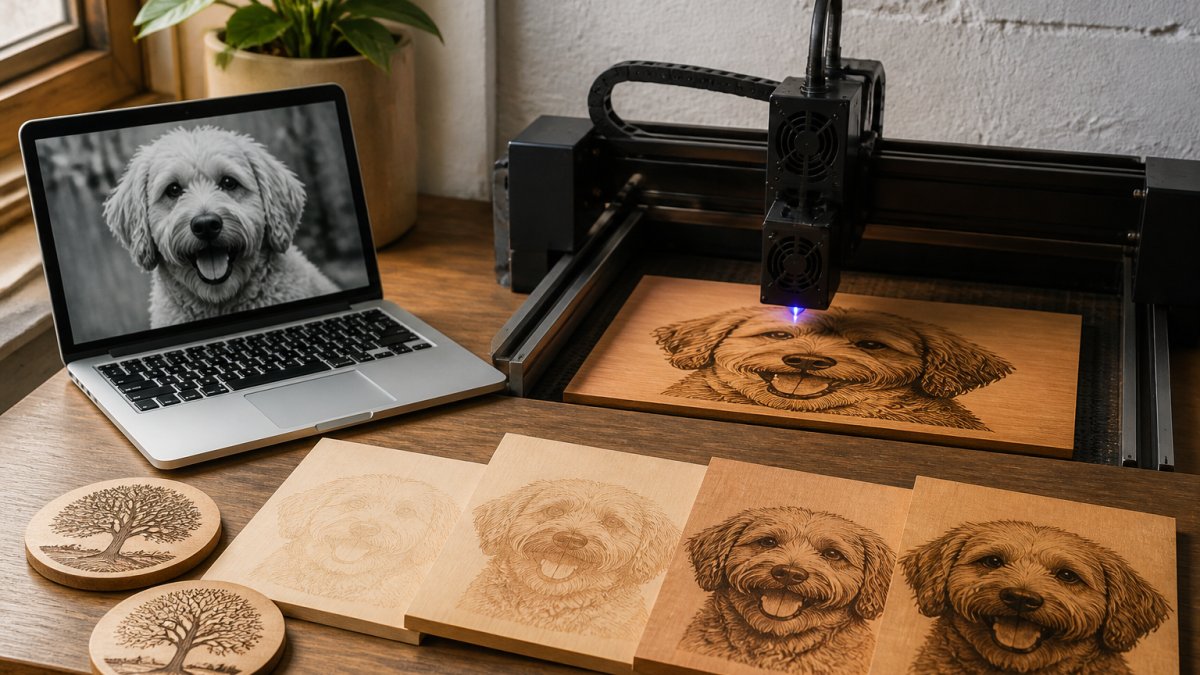
If the source is a photograph with real tonal depth, or a multi-color image where you need engraving-depth variation rather than flat regions, tracing will produce a file that looks like a posterized version of the original. That is a settings problem you cannot solve by tuning. For those jobs, a layered-depth workflow, splitting the image into engraving-depth layers rather than tracing flat contours, produces the result the laser can actually render. Recognize the mismatch early and switch approaches instead of burning an afternoon on parameters.
Step 6: Clean Up Paths, Colors, and Contours
The trace is a starting point, not a finished file. Zoom in and delete stray nodes, merge broken contours, and simplify over-detailed paths. Every node you remove is one less thing for the laser to interpret.
Recolor fills to match your material and engraving plan. Check that shapes are closed, since open paths confuse cut settings. This cleanup step is where amateur traces become professional files.
Step 7: Export SVG for Laser Engraving in LightBurn and xTool Studio
Export your finished vector as SVG, then import it into LightBurn or xTool Studio. Both read SVG cleanly and let you assign engrave and cut layers.
Check your units and scale on import. A file built in millimeters can land at the wrong size if the receiving software assumes different units. If you also need DXF output, our guide on the best way to export DXF files for laser cutting covers the format-specific settings.
For multi-layer engraving jobs, Laser Layer Maker is one option. Our tool splits any photo, cartoon, or logo into engraving-depth layers and exports to LightBurn SVG, DXF, and xTool Studio.
Frequently Asked Questions
What software can vectorize an image for laser engraving?
Several tools handle it. Inkscape is free and includes Trace Bitmap. Adobe Illustrator has Image Trace with strong path editing. CorelDRAW is another option. Dedicated options like Vector Magic and Atomm focus on tracing. For laser work specifically, Laser Layer Maker converts a photo or logo into layered, engraving-depth files and exports to LightBurn SVG, DXF, or xTool Studio.
How do I convert a PNG to SVG without losing quality?
Start with the highest-resolution PNG you have, ideally 300 DPI or higher. Open it in Inkscape, select the image, and use Path > Trace Bitmap. Choose brightness cutoff for single-color logos or multiple scans for images with several colors. Raise the scan threshold until edges look smooth, then delete the original bitmap, run Path > Simplify lightly, and save as Plain SVG. Low-resolution sources will always trace rough, so upscale first if needed.
Can I vectorize an image for free, and what are the limits?
Yes. Inkscape is free and open-source. Free online converters exist, and their limits vary by tool, so check each one's terms before relying on it.
Will a vectorized SVG open correctly in LightBurn or xTool Studio?
Export settings matter. Test one file on scrap material first before running a full job.
Vectorizing images by hand works, but it eats hours on every detailed photo. If your order volume is climbing, hand-tracing will become the bottleneck. Laser Layer Maker turns any image into laser-ready layered files, splits it into precise engraving-depth layers, and exports straight to LightBurn SVG, DXF, or xTool Studio. Get started with Laser Layer Maker and spend less time tracing and more time engraving.