 blog
blog
What Are the Top 7 Layered Wood Map Design Techniques?
Last Updated: October 28, 2026
Quick Summary
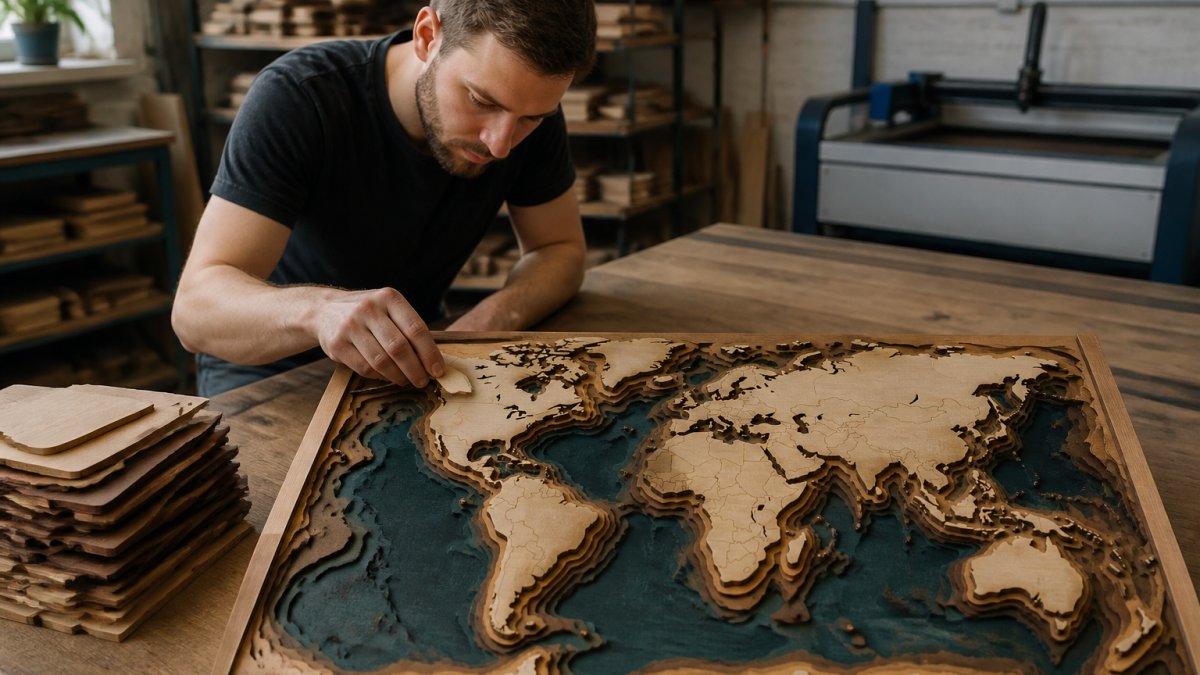
The top 7 layered wood map design techniques are shoreline stacking, road hierarchy, contour depth, negative space, engraved detail, color accents, and scroll framing. Each technique solves a different readability problem, so pick one per map that matches the geography and your layer budget.
- Shoreline stacking cuts water once, then stacks progressively smaller land shapes for a 3D effect.
- Keep shoreline steps to three or four, offsetting each land layer inward by material thickness.
- Road hierarchy cuts highways as through-slots, arterials as shallow pockets, and side streets as engraving.
- Contour depth uses three to six physical elevation steps and engraves the remaining contour lines.
- Negative space inverts the road layer so streets become a raised web above a recessed base.
Table of Contents
- Start With a Map Image That Will Actually Cut Cleanly
- Laser-Cut Map Design Software: From Photo to Cut File
- Wood Map Layer Separation: Splitting Land, Water, and Roads
- Technique 1: Shoreline Stacking for a Clean 3D Laser-Cut Map
- Techniques 2-4: Road Hierarchy, Contour Depth, and Negative Space
- Techniques 5-7: Engraved Detail, Color Accents, and Scroll Framing
- Layered Map Assembly: Registration, Tolerances, and Finish
- Upload Your First Map Image and Build the Layer Stack
- Frequently Asked Questions
Start With a Map Image That Will Actually Cut Cleanly
Great layered wood map projects start with a clean, high-contrast map image that gives the software clear edges to trace. A low-resolution source image can make shoreline edges look jagged when enlarged.
The rule: a map image is only as good as its smallest detail. If a road is two pixels wide in the source, no amount of layering will make it cut cleanly.
Choosing the Right Location and Crop
Pick a location with strong shapes. Coastlines, lakes, and river bends read beautifully as stacked layers. A flat inland grid of streets does not.
Crop tight. A city map cropped to the downtown core beats a whole-state map every time, because each layer carries more usable detail at the same size.
- Best subjects: coastal towns, lake districts, island chains, mountain ranges
- Weak subjects: featureless plains, dense uniform suburbs
- Crop rule: frame the water and one landmark, then stop
Raster vs. Vector: What Your Source File Needs
A raster image is a grid of pixels. A vector file is a set of math-defined paths. Lasers cut paths, so vector wins for anything that gets cut.
Most maps start as raster. That is fine, you just need to trace or threshold it before cutting. For practical steps, see converting photos to laser ready vectors. If you want a full walkthrough, see how to convert photos to layered laser files.
Laser-Cut Map Design Software: From Photo to Cut File
Laser-cut map design software turns a flat picture into separate, cuttable shapes: clean the image, separate the features, and export a file your laser understands.
The usual path looks like this:
- Import the map image
- Raise contrast so water, land, and roads separate cleanly
- Trace each feature group into its own layer
- Order layers from bottom to top
- Export as SVG or DXF for LightBurn or xTool Studio
You can do this by hand in a vector editor.
Wood Map Layer Separation: Splitting Land, Water, and Roads
Wood map layer separation decides whether your finished piece looks like a map or a pile of shapes. You split the artwork into groups, and each group becomes one physical wood layer.
The standard split:
- Base layer: the full outline, usually the landmass
- Water layer: lakes, rivers, and ocean, cut as negative space or a contrasting inlay
- Road layer: major roads only at first, minor roads added later if the scale allows
- Detail layer: labels, contours, or landmarks
Get this split right and assembly becomes obvious. Get it wrong and you will be re-cutting parts. For the full method, read split laser layers.
Technique 1: Shoreline Stacking for a Clean 3D Laser-Cut Map
Shoreline stacking is the workhorse of the 3D laser-cut map. You cut the water shape once, then cut progressively smaller land shapes and stack them.
Water sits at the bottom, land rises above it, and the eye reads depth instantly, the most reliable way to get a 3D map effect without complex toolpaths.
Two practical notes. First, offset each land layer inward by a consistent amount, usually the thickness of your material or slightly less. Second, keep the number of shoreline steps low.
Techniques 2-4: Road Hierarchy, Contour Depth, and Negative Space
These three techniques each solve a different readability problem. Treat them as design modes, not decoration: pick the one that matches the geography and your layer budget.
Technique 2: Road Hierarchy
Road hierarchy means cutting major roads deeper or wider than minor roads.
A workable hierarchy for a city map at 12 x 18 inches:
- Layer 1 (top): highways and major arterials, cut as through-slots
- Layer 2: secondary arterials, cut as shallow pockets or engraved
- Layer 3: neighborhood streets, engraved only, or omitted
- Base: water and land silhouette
Two rules keep this legible. First, never put two road classes on the same physical layer; the eye needs the height difference to sort them. Second, set a minimum feature width before you design.
The trade-off is fabrication time. Every additional road class adds a toolpath pass and a layer, and a dense downtown grid can double cut time versus a shoreline map of the same size.
Technique 3: Contour Depth
Contour depth uses elevation bands as layers. Each contour line becomes a step, so mountains rise out of the map.
The practical constraint is contour interval: a 100-foot interval over a mountain range produces dozens of bands, a 500-foot interval a handful.
Design notes that separate a clean contour map from a muddy one:
- Offset inward, not outward. Each higher band should sit inside the one below by roughly one material thickness so the step edge is visible from above.
- Keep the top band large enough to glue. A summit smaller than a dime is a handling problem, not a design feature.
- Engrave the contour lines on the top band so the eye still reads elevation where the physical steps stop.
Contour depth is the highest-difficulty technique in this list because every band must register to the one below. For a deeper guide, see how to create depth layers for laser engraving.
Technique 4: Negative Space
Negative space flips the approach. Instead of cutting the roads out, you cut everything around them, leaving the road network as raised wood.
The mechanism: invert your road layer in the vector editor, so the road paths become the keep-out region and the surrounding land becomes the cut region.
Negative space punishes small errors. A single stray node in the inverted path leaves a floating island of wood with nothing holding it.
When it works, it works because the contrast is structural rather than painted.
Techniques 5-7: Engraved Detail, Color Accents, and Scroll Framing
Engraved detail adds labels, grid lines, or a compass rose without adding a physical layer. It costs no assembly time and lifts a plain laser-cut map into something finished-looking.
Color accents come from stain, paint, or contrasting wood species. A blue-tinted water layer against natural maple land is the classic combination. Our advice: finish layers before assembly, not after.
Scroll framing wraps the map in a decorative border, often a cut scroll pattern that frames the piece.
| Technique | Layers Added | Difficulty | Best For |
|---|---|---|---|
| Shoreline stacking | 3-4 | Medium | Coastal and lake maps |
| Road hierarchy | 1-2 | Low | City maps |
| Contour depth | 3-6 | High | Mountain terrain |
| Negative space | 1 | High | Bold graphic maps |
| Engraved detail | 0 | Low | Labels and landmarks |
| Color accents | 0 | Low | Water and border contrast |
| Scroll framing | 1 | Medium | Display pieces |
Layered Map Assembly: Registration, Tolerances, and Finish
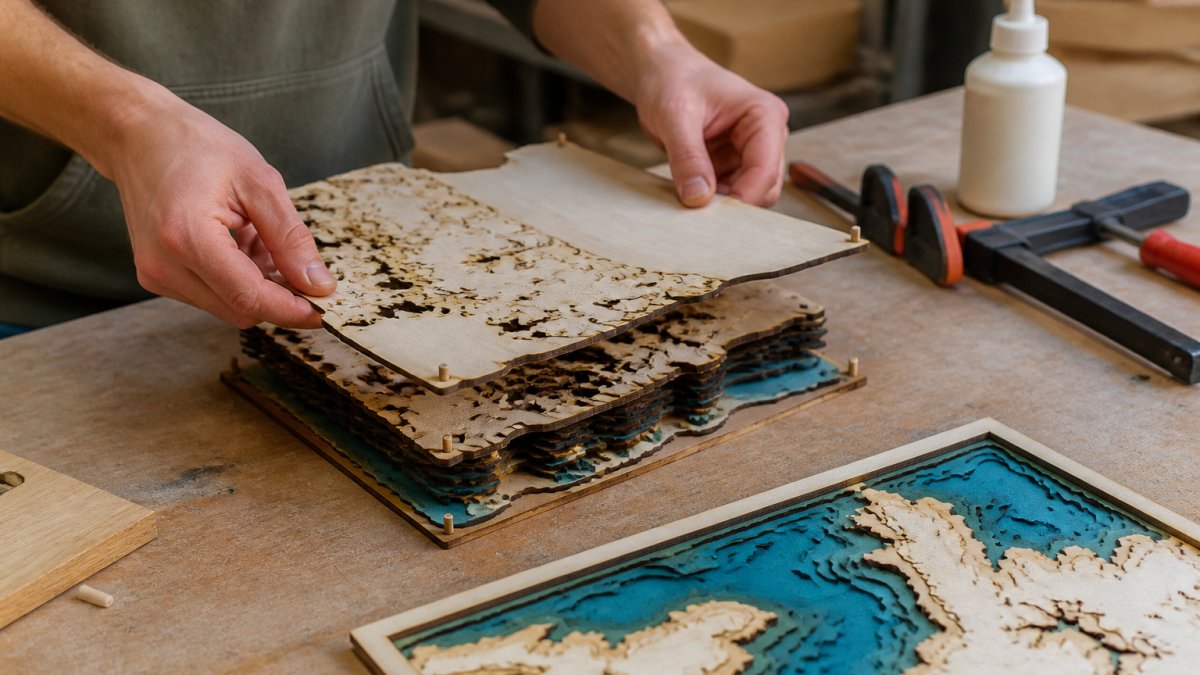
Layered map assembly lives or dies on registration, the alignment of each layer to the one below. Small errors compound fast across four layers.
Build Registration Into the Design
Add two alignment holes to every layer and drop a dowel through the stack. The layers self-align, and clamping becomes simple. Place the holes diagonally opposite each other, outside the map silhouette but inside the final frame, so they are hidden after assembly.
A common pattern is a 1/8-inch hole with a 1/8-inch hardwood dowel. Cut the holes slightly oversize (about 0.005 inch larger than the dowel) so the layers drop on without force; glue the dowel only into the base layer.
Tolerances and Test Fits
Laser kerf removes a sliver of material at every cut, so a shape cut twice will not match perfectly. Design gaps slightly wider than your kerf and test on scrap first: a typical CO2 laser removes roughly 0.005 to 0.010 inch per cut in 1/8-inch plywood, depending on focus and power. Measure your own machine rather than trusting a spec sheet.
Run a three-part test fit before cutting the full map:
- Kerf test: cut a 1-inch square and measure the slot; record the actual kerf.
- Stack test: cut two small shapes with your intended offset and glue them; check that the step reads clearly.
- Dowel test: cut the registration holes and confirm the dowel passes through all layers without slop.
If the stack test shows the step disappearing, increase the offset; if it shows a gap, decrease it. Adjust the design file, not the assembly technique.
Adhesive Choice
Wood glue is the default for wood-to-wood bonds, giving a strong, sandable joint. Apply a thin, even film with a glue roller or a credit card; squeeze-out is easier to sand than to chisel. For mixed materials, such as an acrylic water layer under a wood land layer, use two-part epoxy or cyanoacrylate (CA), because wood glue will not bond to acrylic.
Clamping and Cure
Clamp in pairs, check alignment against the dowels, and let each pair cure before adding the next. Most wood glues reach handling strength in about 30 minutes and full cure in 24 hours; read your bottle, because formulations vary. A flat caul plate over the top layer spreads clamp pressure and prevents bowing.
Finish Before or After Assembly
Finish layers before assembly, not after. Masking edges is far harder once glued, and stain that seeps onto a neighboring layer is nearly impossible to remove without sanding through the veneer. Stain or paint each layer, let it cure fully, then assemble. If you must finish after assembly, mask the joints with painter's tape and work top down.
Preventing Small Pieces From Shifting
Small islands, such as a lake cutout or a standalone landmark, are the pieces most likely to shift during clamping. Two fixes work: add a hidden registration pin under the piece, or glue it to its parent layer first and let it cure before the full stack goes together.
A finished layered map should sit flat on a table with no rocking. If it rocks, the base layer is warped or a dowel is binding; fix it before framing, because a frame will not flatten a twisted stack.
Upload Your First Map Image and Build the Layer Stack
The fastest way to learn these seven techniques is to run one map through the full workflow. Pick a coastline you love, crop it tight, and let the software do the separation.
Laser Layer Maker turns images into laser-ready layered files and supports export to LightBurn SVG, DXF, and xTool Studio. Follow the getting started with laser layers walkthrough to upload an image and export your files.
Ready to try it?
Frequently Asked Questions
How many layers should a layered wood map have?
Layer count and design depend on the map and the intended result.
How do you create depth in a 3D laser-cut map?
Layered designs can use separate image layers to create a depth-based project.
What software can you use to design a laser-cut wood map?
Laser Layer Maker turns images into laser-ready layered files and supports export to LightBurn SVG, DXF, and xTool Studio.
How do you keep small details from breaking when cutting a wood map?
The appropriate design and cutting approach depends on the project and equipment.
Most makers lose their first map project to a bad source image or a sloppy layer split, not to the laser. Fix those two steps and the rest follows. Laser Layer Maker turns any photo, cartoon, or logo into laser-ready layered files, splits images into precise engraving-depth layers, and exports to LightBurn SVG, DXF, and xTool Studio. Get started with Laser Layer Maker and turn your next map into a piece worth framing.