 comparison
7 Laser Design Workflow Software Alternatives to Try
Last Updated: October 26, 2026
Quick Summary
The best software alternatives for a laser design workflow depend on whether you need design, machine control, or both: LightBurn is the all-in-one standard, Inkscape handles free vector design, LaserGRBL controls GRBL diode machines, and Laser Layer Maker automates photo layer prep. Most workflows need one design tool, one control tool, and one prep step for photos.
- LightBurn combines vector editing, raster handling, layer settings, and direct machine control in one window.
- Inkscape has no concept of laser layers, power, or speed, so machine settings live elsewhere.
- LaserGRBL is a free controller for GRBL-based diode lasers, not a design program.
- The realistic free stack is Inkscape for design plus LaserGRBL or RDWorks for control.
- Laser Layer Maker exports to LightBurn SVG, DXF, and xTool Studio.
Table of Contents
- Best Laser Engraving Software at a Glance
- LightBurn: The All-in-One Laser Design Workflow Standard
- Free Laser Engraving Software Worth Your Time
- Photo to Laser Engraving Software: Turning Images into Engraving Layers
- Laser Engraving File Formats and Machine Compatibility
- Total Cost of Ownership and Workflow Time Savings
- Which Software Fits Your Production Workflow
- Prepare Your First Layered File with Laser Layer Maker
- Frequently Asked Questions
Best Laser Engraving Software at a Glance
Choosing software alternatives for laser design workflow comes down to one question: do you need design, machine control, or both in a single program?
The right pick depends on your machine, your volume, and whether you engrave photos or cut vector shapes. For a broader look at file preparation tools, see our comparison of the best laser file preparation tools.
Laser design workflow is the full sequence from source image or sketch to a finished cut or engraving: file preparation, layering, machine settings, and job output.
Quick Comparison: Design, Control, and Cost
| Software | Design Tools | Machine Control | Cost Model | Best For |
|---|---|---|---|---|
| Laser Layer Maker | Layer prep and export | No | Paid subscription | Photo-to-layered-file prep |
| LightBurn | Yes | Yes | Paid license | All-in-one design and control |
| Inkscape | Vector editing | No | Free | SVG creation and editing |
| LaserGRBL | Limited | Yes | Free | GRBL-based diode machines |
| xTool Creative Space | Yes | Yes | Varies by machine | xTool hardware owners |
LightBurn: The All-in-One Laser Design Workflow Standard
LightBurn is the closest thing to a default for anyone running a CO2 or diode laser.
That convenience is why so many shops standardize on it. If you are weighing a switch, compare laser engraving alternatives to Craftgineer directly.
The catch is the learning curve. New users often underestimate how much layer management affects output quality, especially on photo engraving.
Free Laser Engraving Software Worth Your Time
Free laser engraving software is genuinely capable now, but "free" covers three very different things: open-source design suites, open-source machine controllers, and manufacturer apps that ship with a specific machine. Knowing which category a tool falls into tells you what it can and cannot do before you download it.
The Free Design Layer: Inkscape and Its Limits
Inkscape is the free standard for vector work, SVG creation, node editing, bitmap tracing, and clean path construction. First, Inkscape has no concept of laser layers, power, or speed; it exports geometry, and the machine settings live somewhere else. Second, its DXF export is serviceable but not identical to CAD-native DXF, so complex files can arrive at the controller with shifted nodes or merged paths.
The Free Control Layer: LaserGRBL and GRBL-Based Machines
LaserGRBL is the common free controller for GRBL-based diode lasers. It imports raster images and vector files, lets you set power and speed, previews the job, and streams G-code to the machine. It is not a design program, you bring finished geometry in. Its raster handling is workable for simple engraving but manual for photo work, because you are adjusting contrast and dithering job by job rather than through a layered prep step.
Other Free Options Worth Knowing
- RDWorks ships with many Ruida-controlled CO2 lasers and handles layer parameters and machine output, but its interface and file handling feel dated next to paid tools.
- LaserWeb is an open-source, browser-based option for GRBL controllers; it is useful for simple jobs but has a smaller community and slower update cadence than LaserGRBL.
- Manufacturer apps (for example, the free tier of a brand's creative software) are convenient if you own that brand's machine, but they typically lock you to that hardware ecosystem.
The Handoff Is Where Free Stacks Break
The realistic free stack is Inkscape for design plus LaserGRBL (or RDWorks) for control. The friction is the handoff: you design in one program and control in another, and neither knows what the other did. A common failure is exporting an SVG with unclosed paths or text that was never converted to paths, which throws errors at the controller. The fix is a checklist, not a better tool: convert text to paths, close all paths, flatten transparency, and verify dimensions after import.
Best for: Hobbyists on a tight budget with diode or Ruida-controlled machines who mostly cut vectors and engrave simple graphics. Skip if: You engrave photos regularly, run mixed machine types, or need predictable file handoff, the manual layering and export fixes add up fast.
Photo to Laser Engraving Software: Turning Images into Engraving Layers
Photo to laser engraving software exists to solve one problem: a photograph is continuous tone, and a laser is not.
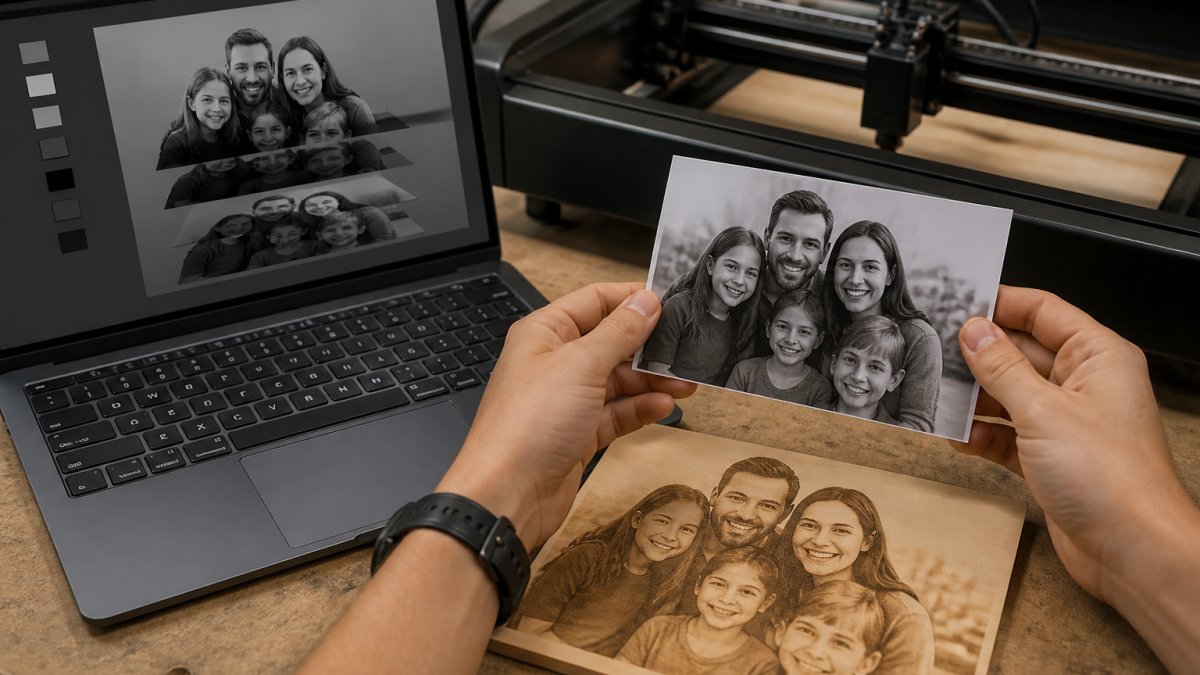
Most general design tools treat this as an afterthought. You get a dither pattern and hope. Before feeding images in, follow this guide on how to prepare photos for laser engraving.
Laser Engraving File Formats and Machine Compatibility
Laser engraving file formats decide whether your design reaches the machine intact. The three you will meet most are SVG for vectors, DXF for CAD interchange, and raster formats like PNG for photo work.
Compatibility is where workflows break. A file that looks perfect on screen can import with shifted nodes, missing fills, or merged layers. See the best way to export DXF files for laser cutting so your software and machine accept them.
CO2, Fiber, and Diode: Matching Software to Your Laser
Machine type narrows the field fast. CO2 lasers pair well with LightBurn and most design suites. Diode lasers often rely on GRBL-based control like LaserGRBL. Fiber lasers for metal marking usually ship with their own control software, and third-party support is thinner.
Watch out: assuming a program supports your controller because it supports the laser type. Check the controller, not the tube.
Total Cost of Ownership and Workflow Time Savings
Price tags mislead here. The real cost of laser cutter software is the license plus the hours you spend fighting file prep, and the second number usually dwarfs the first. Most comparisons stop at "free vs. paid" and never add up the components, so here is the full ledger.
The Five Cost Components
- License or subscription. A perpetual license is a one-time cost; a subscription recurs monthly or annually. Compare the same time horizon, a subscription that looks cheap monthly can exceed a perpetual license within a couple of years.
- Upgrades and major-version fees. Some perpetual licenses include updates for a period and then charge for the next major version. Budget for that, not just the initial purchase.
- Companion apps. A design tool plus a control tool plus a photo-prep tool means two or three licenses. Free tiers often have export limits, watermarks, or feature caps that push you to paid anyway.
- Hardware and controller constraints. A tool that does not support your controller is not a saving, it is a forced upgrade. Verify controller support before counting a license as "free."
- Training and lost time. The learning curve is a real cost. A cheaper tool with poor documentation can cost more in wasted material and re-cuts than a pricier tool with a strong tutorial library.
The Break-Even Mechanism
The break-even point is jobs per month. Free tools cost nothing upfront but charge you in manual layering and export fixes, call it a fixed time penalty per job. Paid all-in-one tools cut that friction but add a license and a learning curve. The math is straightforward: divide the annual license cost by the hours saved per job, multiply by your jobs per month, and compare that to what your time is worth.
A Worked Example (Illustrative)
Suppose a paid all-in-one license runs a few hundred dollars per year and saves you 20 minutes per job versus a free stack. At 40 jobs a month, that is roughly 13 hours a month recovered. Whether that clears the license depends entirely on your hourly value, but the point is that the decision is arithmetic, not brand loyalty. Run the same calculation for a dedicated photo-prep tool if photo engraving is a large share of your work.
Pricing for prep tools varies by plan and volume, so check current rates directly rather than estimating. The structure of the decision, five cost components and a jobs-per-month break-even, stays the same regardless of which tools you shortlist.
Which Software Fits Your Production Workflow
Match the tool to the job, not to a feature list. Here is how we would decide:
- Photo engraving on tumblers, plaques, or gifts: use a dedicated layer-prep tool, then export to your controller.
- Vector signage and cut files: Inkscape for design, LightBurn or LaserGRBL for control.
- Mixed production shop: LightBurn as the hub, with a prep tool feeding it layered files.
The pattern is consistent: most workflows need one design tool, one control tool, and one prep step for photos. Consolidating those three is where the real time savings live.
Prepare Your First Layered File with Laser Layer Maker
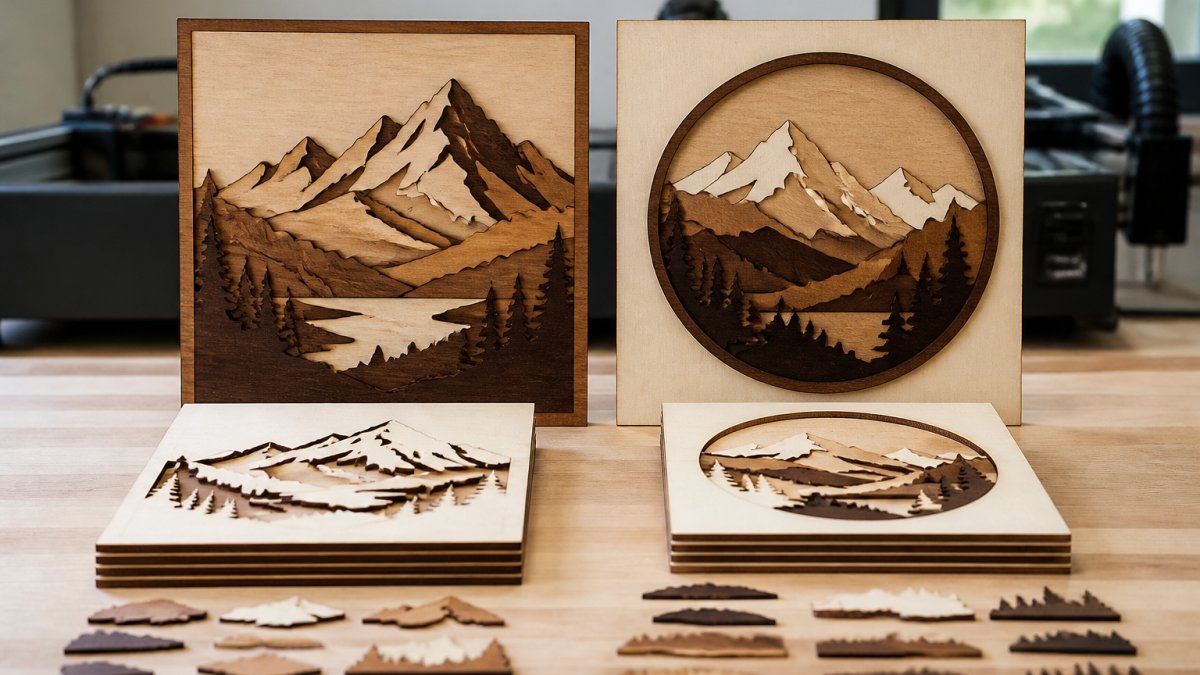
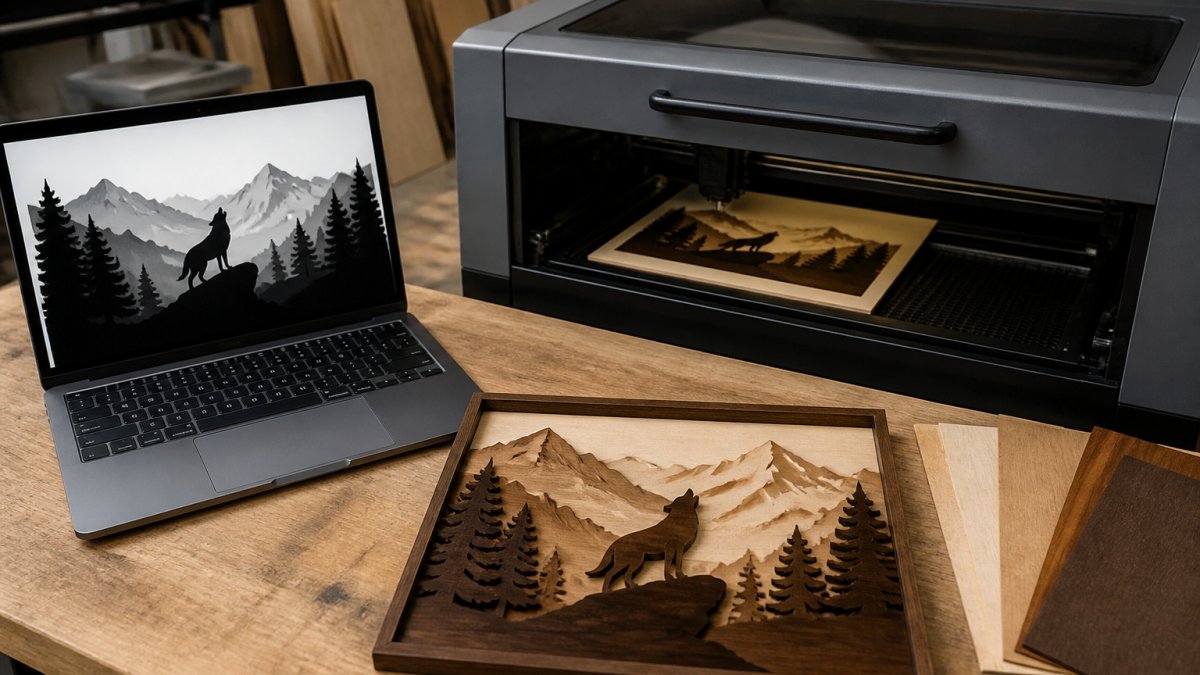
The prep step is the bottleneck most makers accept as normal. It does not have to be. Laser Layer Maker turns any photo, cartoon, or logo into laser-ready layered files, splitting images into precise engraving-depth layers automatically.
Exports go straight to LightBurn SVG, DXF, and xTool Studio, so the file lands in your existing workflow instead of replacing it. You can review plans and pricing for Laser Layer Maker before signing up.
Frequently Asked Questions
What software can I use to design files for laser engraving?
You can design files in vector editors like Inkscape, in a combined design-and-control package like LightBurn, or in a dedicated photo-conversion tool that outputs layered engraving files. The right pick depends on whether you need vector graphics for cutting, raster images for photo engraving, or both. Many shops pair a free vector editor for layout with a control suite for job setup and material settings.
What is the best free laser engraving software?
Inkscape is the strongest free option for vector graphics and SVG editing, and LaserGRBL is a popular free choice for machine control. Used together, they cover design and job setup without a subscription. Free tools ask more of you in file preparation, so check that your export format and laser controller are supported before committing a production run to them.
What software converts photos into laser-ready designs?
Photo to laser engraving software converts a raster image into engraving-depth layers or dithered output. Laser Layer Maker does this by splitting any photo, cartoon, or logo into precise layers and exporting to LightBurn SVG, DXF, or xTool Studio. That removes most manual tracing and level adjustments, which is where photo engraving projects usually stall.
Which file formats work with laser engraving software?
SVG and DXF are the most widely accepted vector formats for laser design workflow, while PNG, JPG, and BMP serve as raster sources for photo engraving. Some control suites also import AI, PDF, or their own native project files. Confirm the import list for your specific machine and controller, because a format that opens in one program may not carry layers or cut settings into another.
Can I use LightBurn to design laser engraving files?
Yes. LightBurn combines design and machine control, so you can draw shapes, import vector and raster artwork, set cut and engrave parameters, and send the job without switching programs. It handles laser engraving file formats including SVG and DXF on import and manages material settings per layer. For complex photo work, many users still prepare the image in a dedicated tool first.
The challenge is not finding software. It is getting a clean, layered file into the machine without losing an afternoon to manual prep. Laser Layer Maker handles that step for you: automatic engraving-depth layers, exports to LightBurn SVG, DXF, and xTool Studio, and multi-layer projects built from a single photo or logo. Get started with Laser Layer Maker and spend your time running jobs instead of fixing files.